macOS에 VPN을 설치하는 방법
VPN Unlimited App Store 버전
이 가이드에서는 VPN Unlimited 애플리케이션을 시작하고 손쉽게 관리할 수 있도록 단계별 지침을 제공합니다.
이 설명서에서는 다음 질문을 살펴보겠습니다.
- macOS 기기에 VPN Unlimited를 설치하는 방법은 무엇인가요?
- VPN Unlimited를 처음 실행할 때 설정하는 방법은 무엇인가요?
- VPN Unlimited 애플리케이션을 제거하는 방법은 무엇인가요?
계속 읽고 이 모든 질문에 대한 답을 확인하세요!
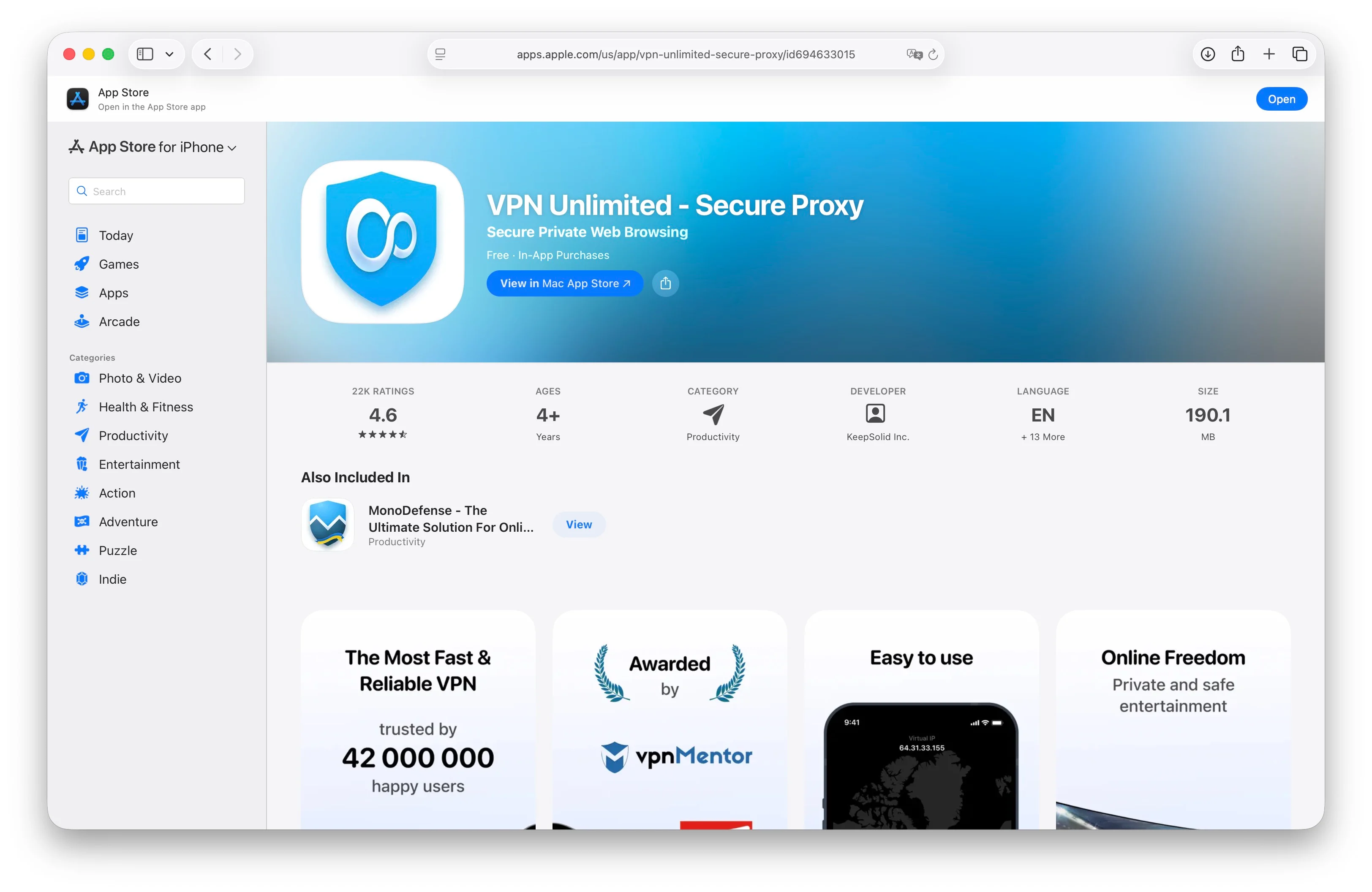
애플리케이션 페이지에서 "받기" 버튼을 클릭하세요. 이전에 이 애플리케이션을 설치한 적이 있다면 화살표가 있는 구름 아이콘을 클릭하세요.
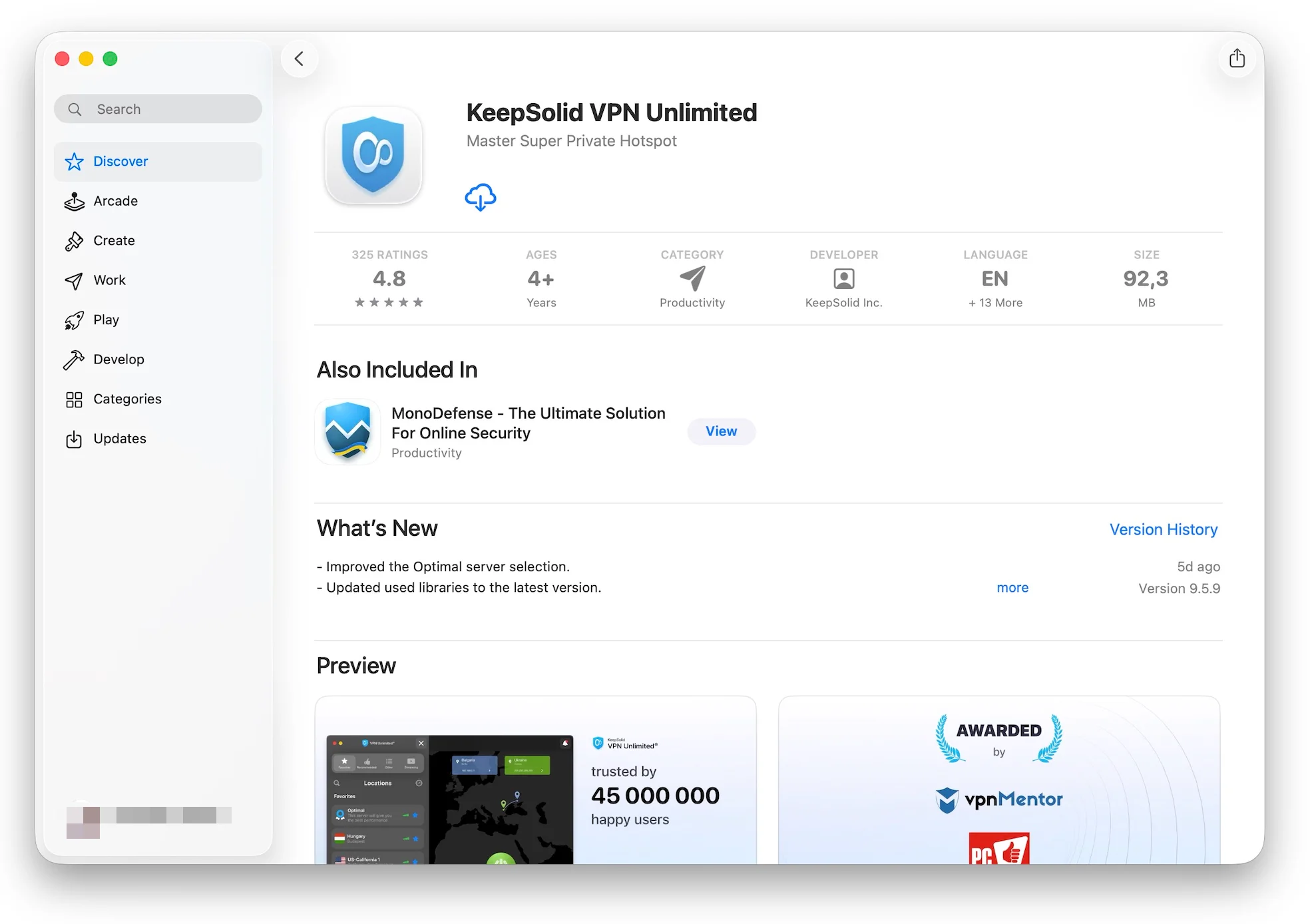
설치 과정이 완료될 때까지 기다리세요.
완료되었습니다! 이제 애플리케이션을 실행하고 안전한 VPN 연결을 설정할 준비가 되었습니다.
2. VPN Unlimited 첫 실행 설정 방법
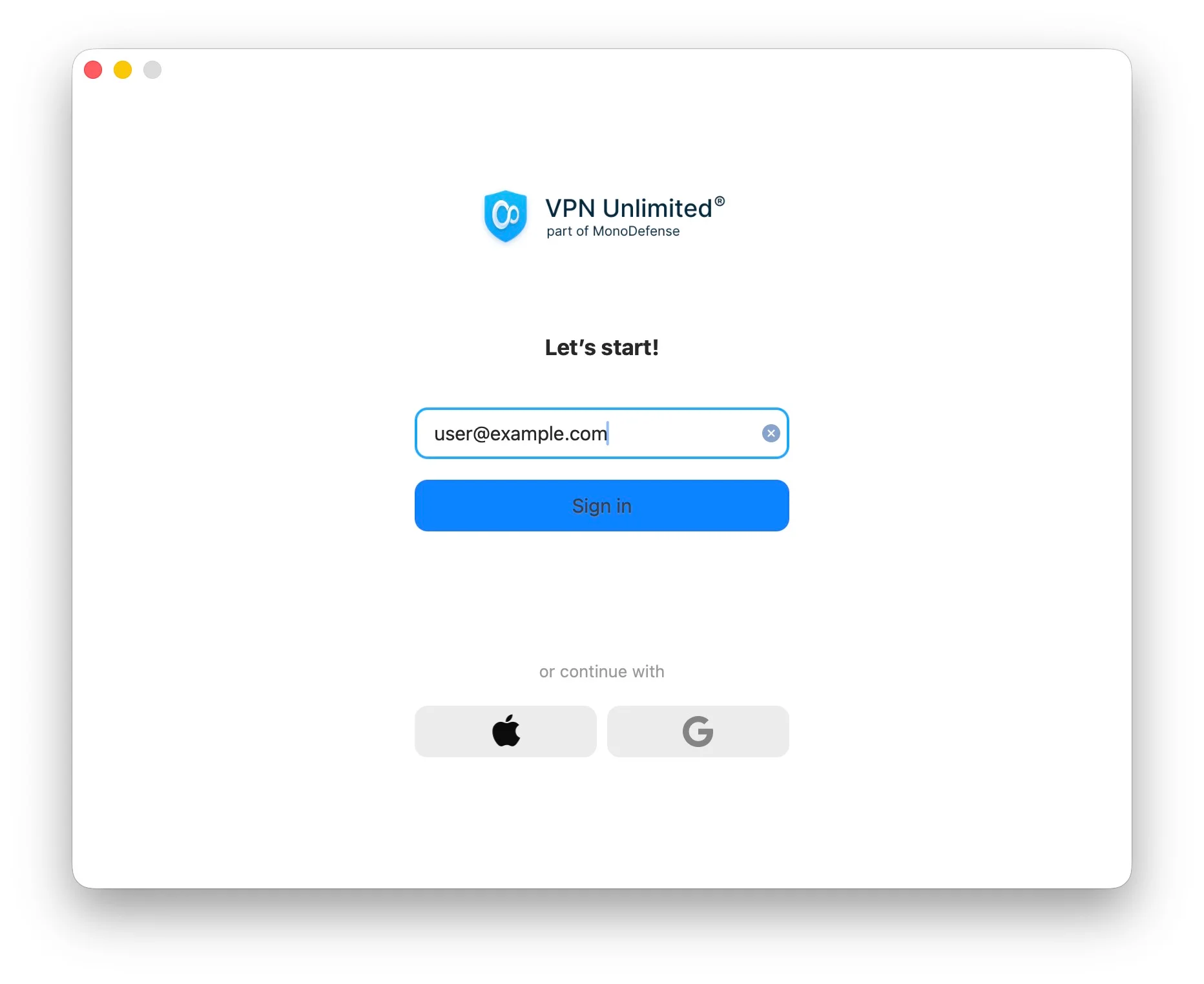
애플리케이션을 처음 실행하면 인증하거나 가입하라는 메시지가 표시됩니다(KeepSolid ID 입력 절차 사용).
1. 해당 필드에 이메일 주소를 입력하세요.
2. "계속"을 클릭하세요.
3. KeepSolid ID 계정 보유 여부에 따라 안내에 맞춰 로그인(KeepSolid ID가 있는 경우)하거나 가입(신규 사용자인 경우)하세요.
KeepSolid ID에 대한 자세한 정보와 필요한 이유는 이 페이지에서 확인할 수 있습니다.
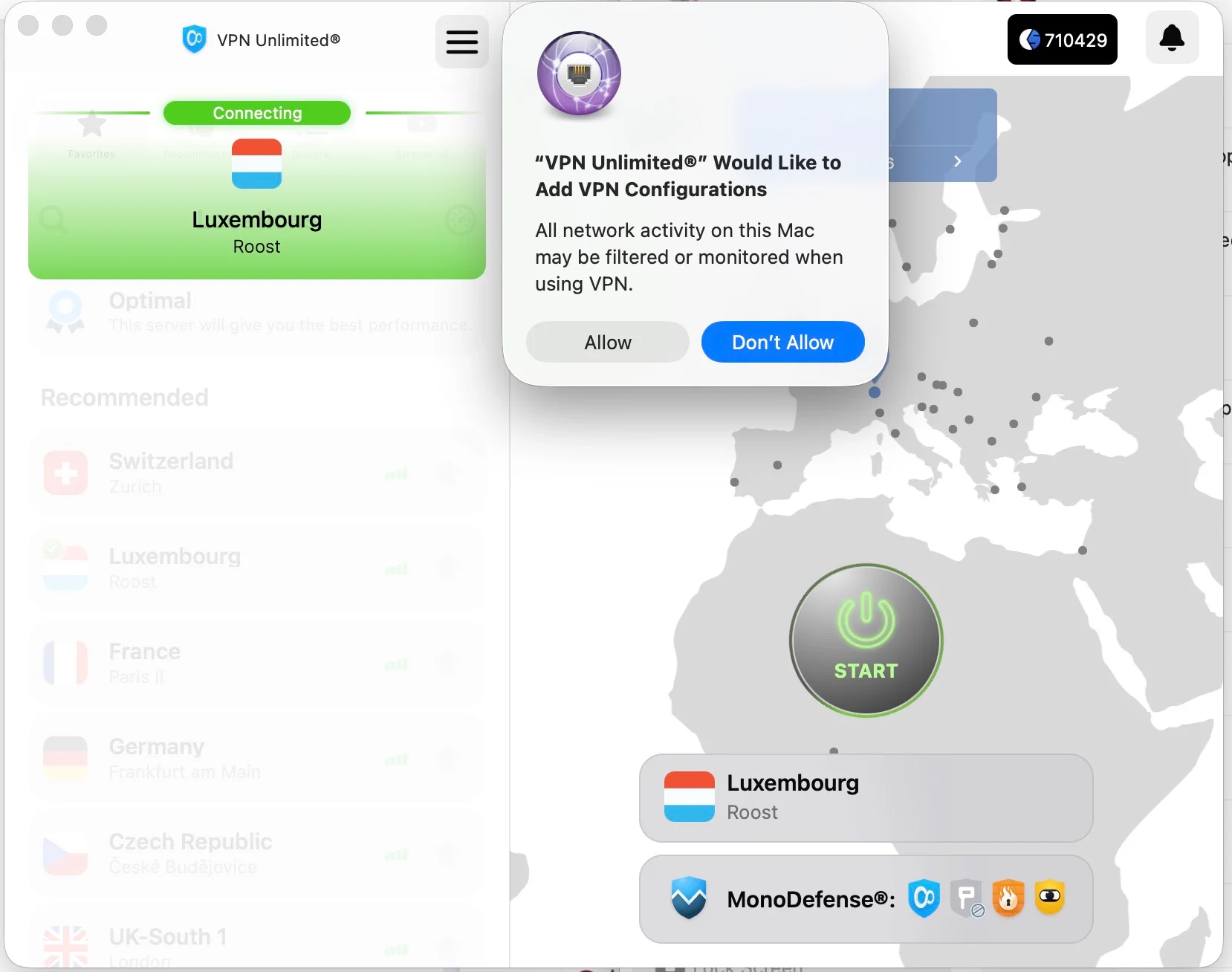
4. 애플리케이션에서 VPN 구성 추가 및 VPN 프로필 다운로드를 허용해 달라고 요청할 수 있습니다. 이는 VPN 설치 시 표시되는 표준 시스템 요청입니다.
계속하려면 "허용"을 클릭하세요.
5. VPN 서버에 처음 연결할 때 macOS 계정 암호를 입력하라는 시스템 메시지가 표시될 수 있습니다(neagent 또는 NEIKEv2Provider 등의 서비스용). 애플리케이션이 안전한 VPN 연결을 설정하는 데 필요한 권한을 부여하려면 암호를 입력하세요.
3. VPN Unlimited 애플리케이션 제거 방법
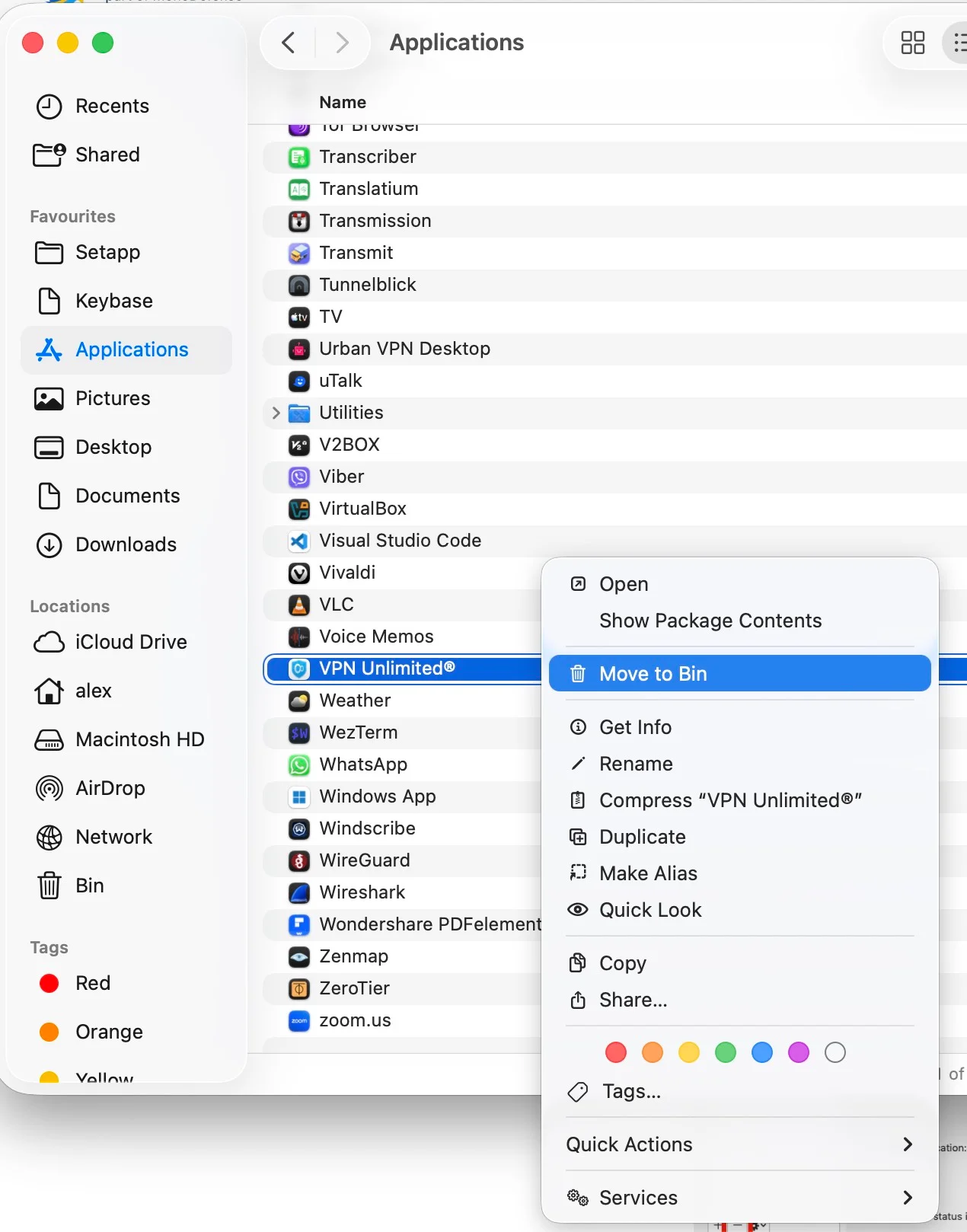
VPN Unlimited 애플리케이션을 제거하려면 표준 macOS 절차를 따르세요.
1. "응용 프로그램" 폴더로 이동하세요.
2. VPN Unlimited 아이콘을 마우스 오른쪽 버튼으로 클릭하고 "휴지통으로 이동"을 선택하거나 애플리케이션 아이콘을 휴지통으로 끌어다 놓으세요.
3. 연결된 프로필을 자동으로 제거하는 경우가 많은 타사 제거 프로그램을 사용할 수도 있습니다.
선택 사항: VPN 프로필 수동 제거
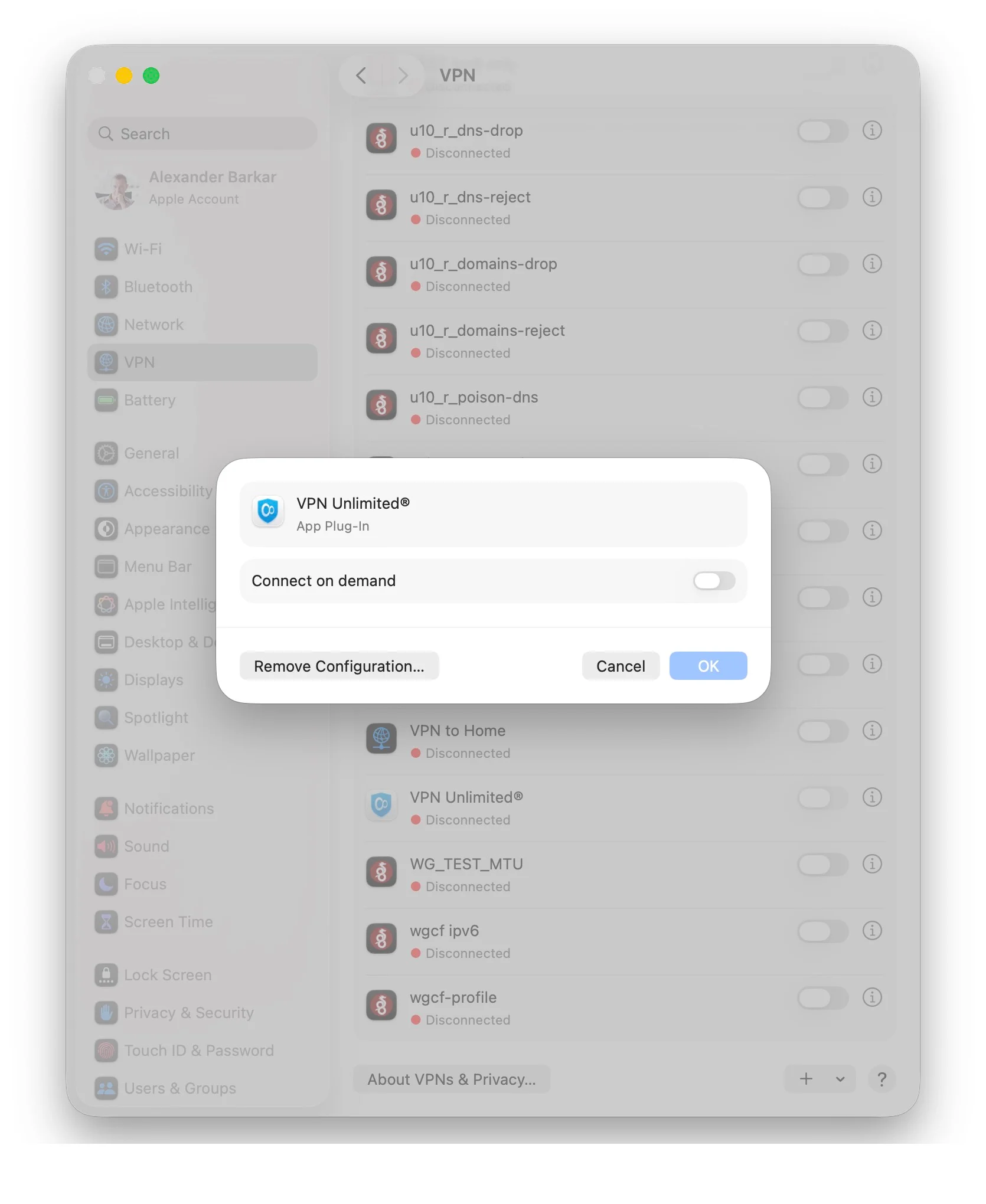
애플리케이션 삭제 후에도 VPN 프로필 구성이 남아 있거나 제거 프로그램에서 이를 제거하지 않은 경우 수동으로 제거하려면 다음 단계를 따르세요.
1. 설정(또는 시스템 환경설정) > VPN으로 이동하세요.
2. VPN Unlimited 프로필을 선택하고 구성을 제거하세요.
macOS용 VPN Unlimited를 사용해야 하는 이유
- 최고 수준의 AES-256 암호화로 개인 정보를 보호하기 위해
- 보안이 취약한 공용 WiFi 핫스팟 사용 시 인터넷 연결을 보호하기 위해
- 인터넷 검열을 우회하고 지역 제한과 VPN 차단을 해제하기 위해
- 가능한 가장 빠른 연결 속도로 스트리밍 동영상을 즐기기 위해
- 개인정보를 위험에 빠뜨리지 않고 익명으로 안전하게 토렌트를 이용하기 위해
- Personal VPN Server와 Static IP 같은 추가 기능으로 온라인 익명성을 유지하기 위해
VPN Unlimited의 장점
_3382.png)
웹에서 누리는 철통같은 개인정보 보호
KeepSolid의 Virtual Private Network는 권한이 없는 제3자가 민감한 정보와 개인정보를 포함한 사용자의 데이터를 읽을 가능성을 차단합니다. 따라서 걱정 없이 인터넷을 통해 어떤 데이터든 자유롭게 전송할 수 있습니다.

80개 이상의 위치에 있는 3000개 이상의 가상 서버
VPN Unlimited는 전 세계 80곳 이상의 위치에서 3000대 이상의 서버를 제공합니다. 따라서 필요에 가장 적합한 가상 서버를 언제든지 선택할 수 있습니다. 어떤 가상 서버를 선택해야 할지 고민되시나요? 최적 서버 옵션을 활성화하면 VPN이 가장 적합한 서버를 선택해 드립니다.

글로벌 스트리밍 서비스 이용
KeepSolid의 Virtual Private Network를 사용하면 Disney+, BBC iPlayer, Hulu, Sony Crackle 및 기타 인기 스트리밍 서비스의 차단을 해제할 수 있습니다. 그뿐만 아니라 지역 제한이 적용된 다른 웹사이트와 차단된 서비스도 이용할 수 있습니다!
_3383.png)
무제한 기기
VPN 구독을 이용하면 macOS, iOS, Android, Windows, Linux는 물론 일부 브라우저를 포함하여 최대 5대의 기기를 보호할 수 있습니다(기기 수는 횟수 제한 없이 늘릴 수 있습니다). 또한 필요한 만큼 기기 수를 확장할 수 있습니다.

더 이상 시간을 낭비하지 마세요! VPN Unlimited를 다운로드하고 비공개로 안전하게, 아무런 제한 없이 웹 탐색을 시작하세요!