How to Install VPN on macOS
VPN Unlimited App Store Version
This guide contains step-by-step instructions to help you get started with the VPN Unlimited application, and easily manage it.
In this manual we are going to consider the following questions:
- How to install VPN Unlimited on your macOS device?
- How to manage VPN Unlimited first launch?
- How to remove the VPN Unlimited application?
Keep reading and find answers to all these questions!
1. How to install VPN Unlimited on your macOS device
To download our reliable VPN for macOS device, please follow this link. If you followed an external link, click the "View in Mac App Store" button to proceed to the download page.
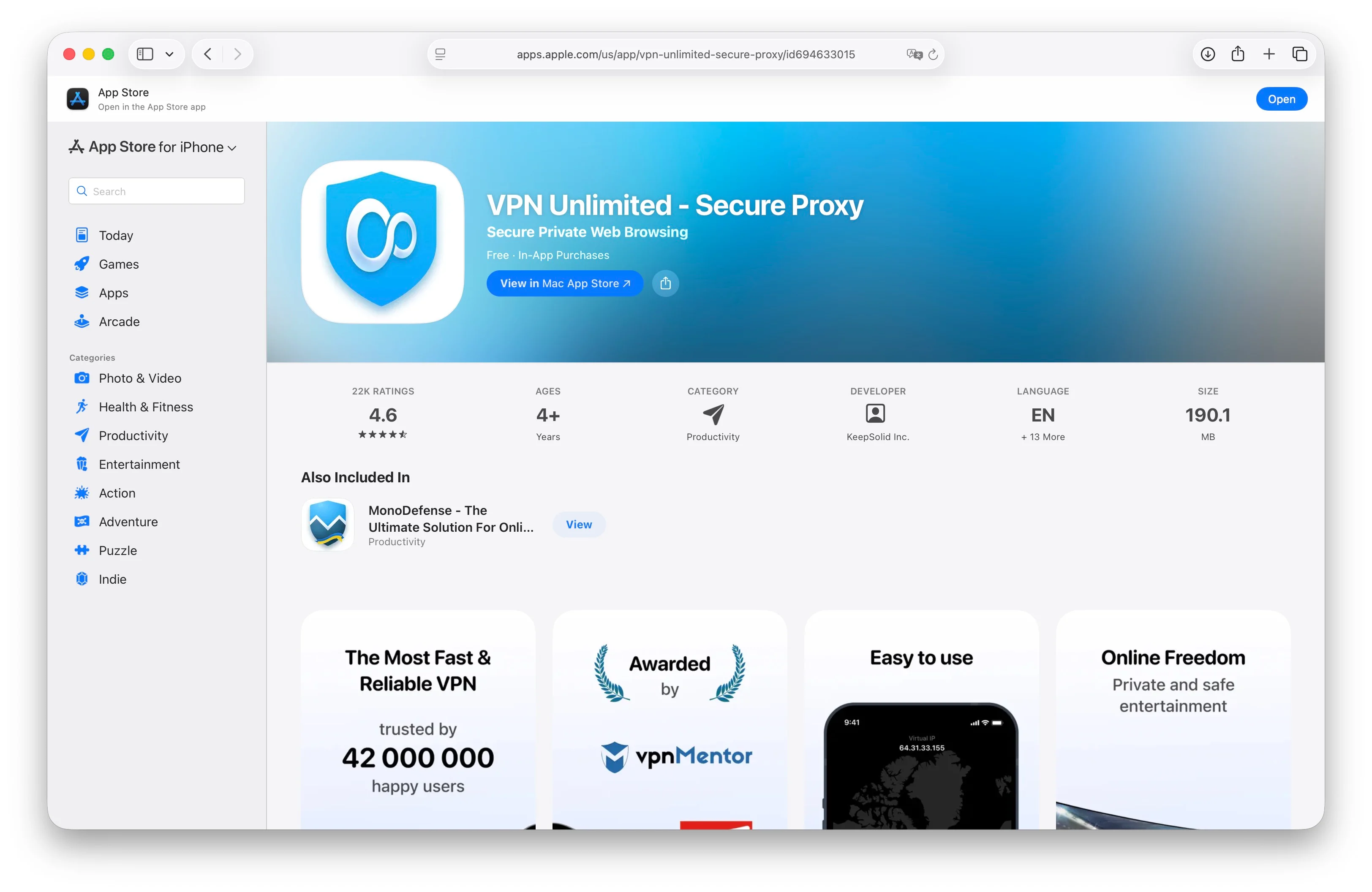
On the application page, click the "Get" button, or the cloud icon with an arrow if you have installed this application previously.
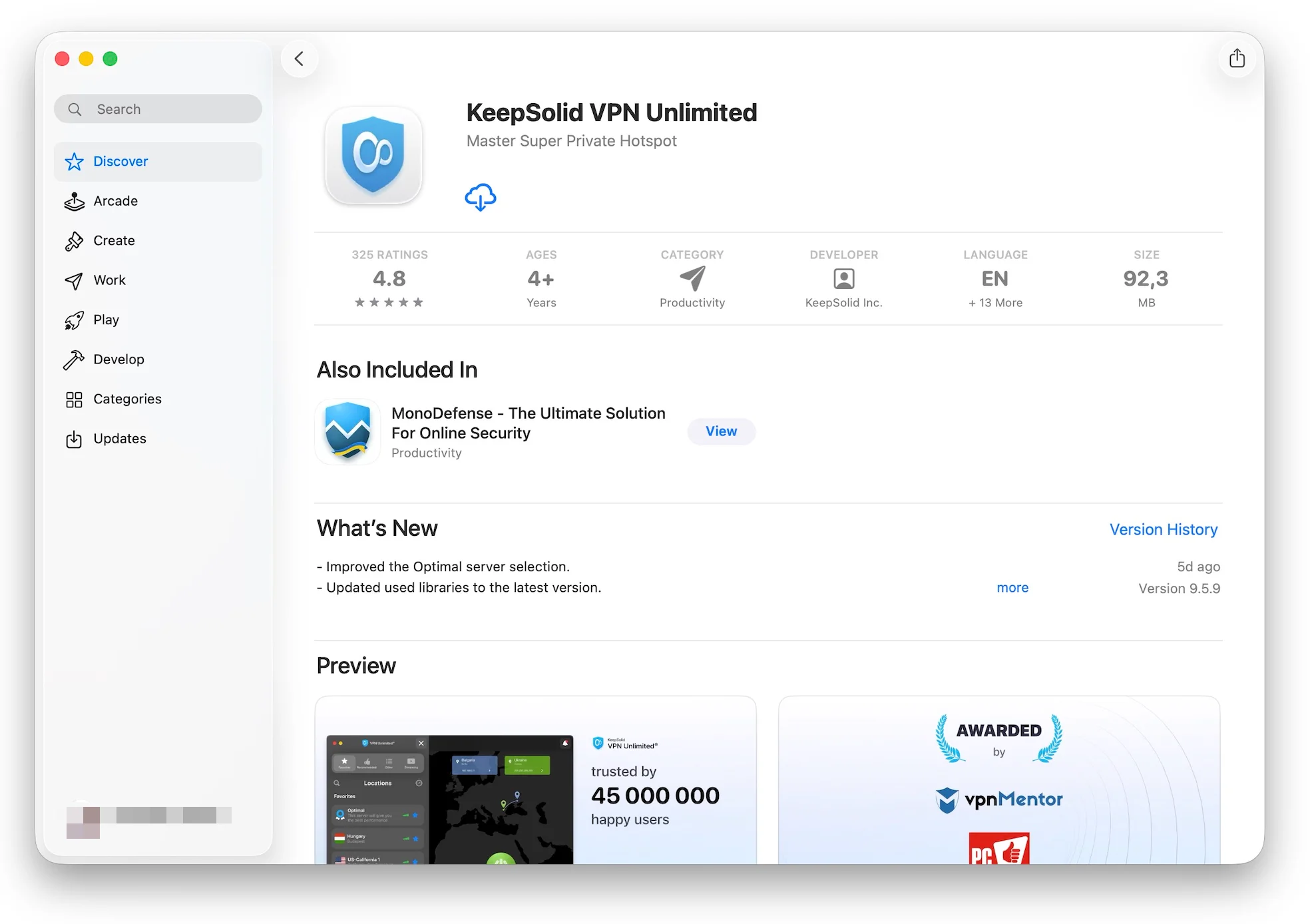
Wait for the installation process to complete.
That’s it! You are now ready to launch the application and establish a secure VPN connection.
2. How to manage VPN Unlimited first launch
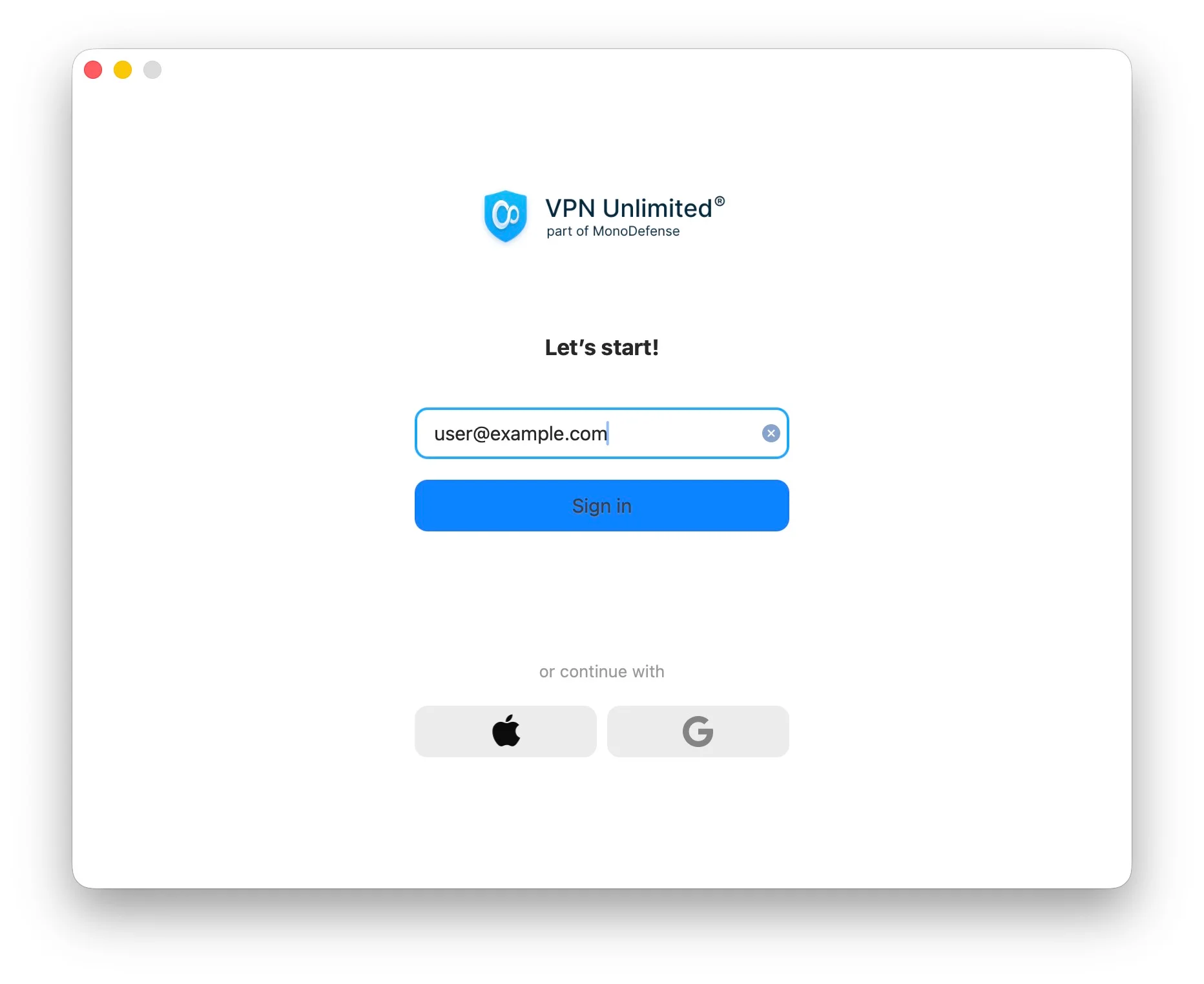
Upon the first launch, the application will prompt you to authorize or sign up (using the KeepSolid ID entry flow):
1. Enter your email address in the appropriate field.
2. Click "Continue".
3. Depending on whether you already have a KeepSolid ID account, follow the instructions to either Sign in (if the KeepSolid ID exists) or Sign up (if you are a new user).
More information about KeepSolid ID and why you need it, you can find on this page.
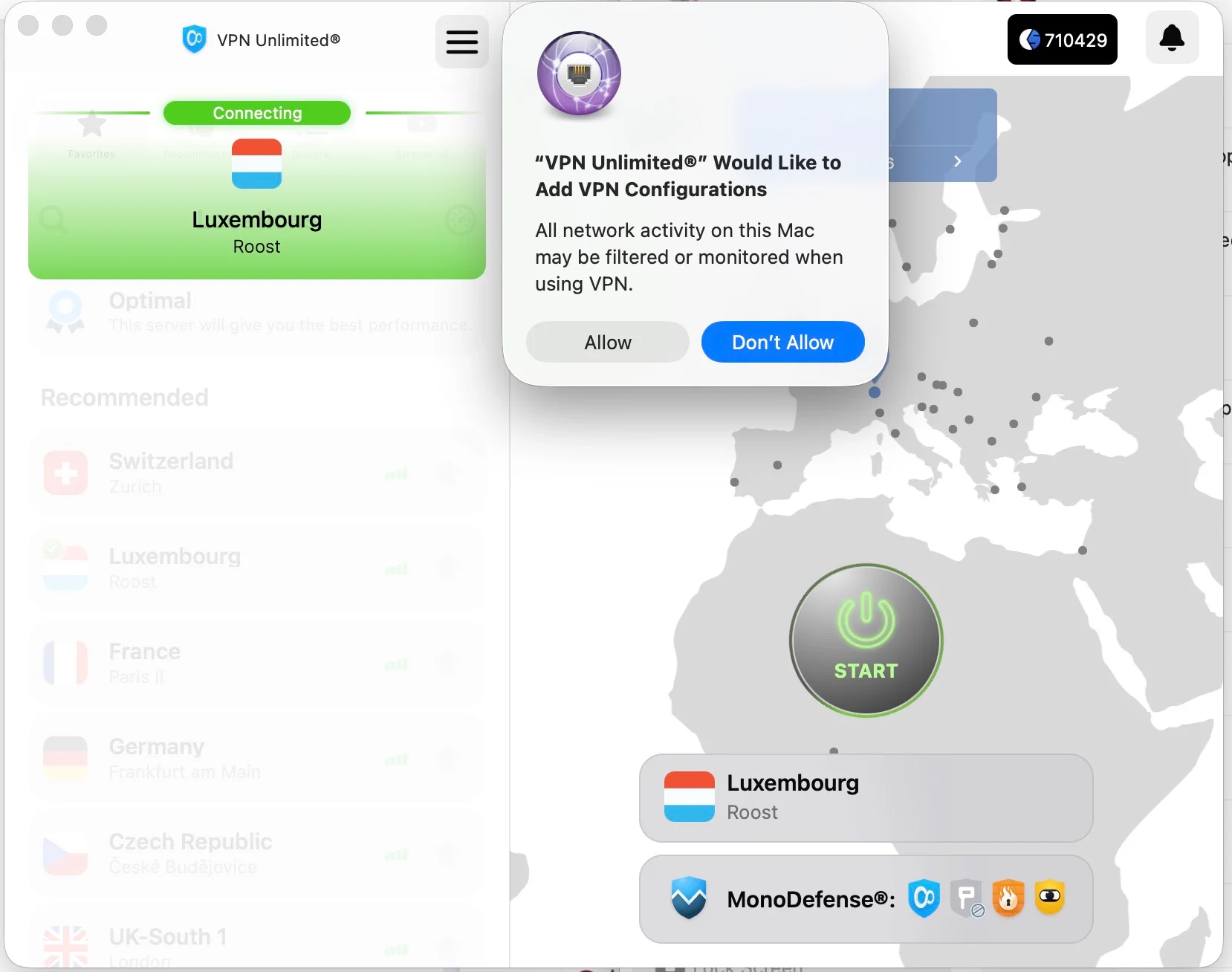
4. The application may request your permission to allow adding VPN configurations and downloading a VPN profile. This is a standard system request when installing a VPN.
Click "Allow" to proceed.
5. When connecting to a VPN server for the first time, a system prompt may appear asking for your macOS account password (for services like neagent or NEIKEv2Provider). Enter the password to grant the application the necessary rights to establish a secure VPN connection.
3. How to remove the VPN Unlimited application
To remove the VPN Unlimited application, follow the standard macOS procedures:
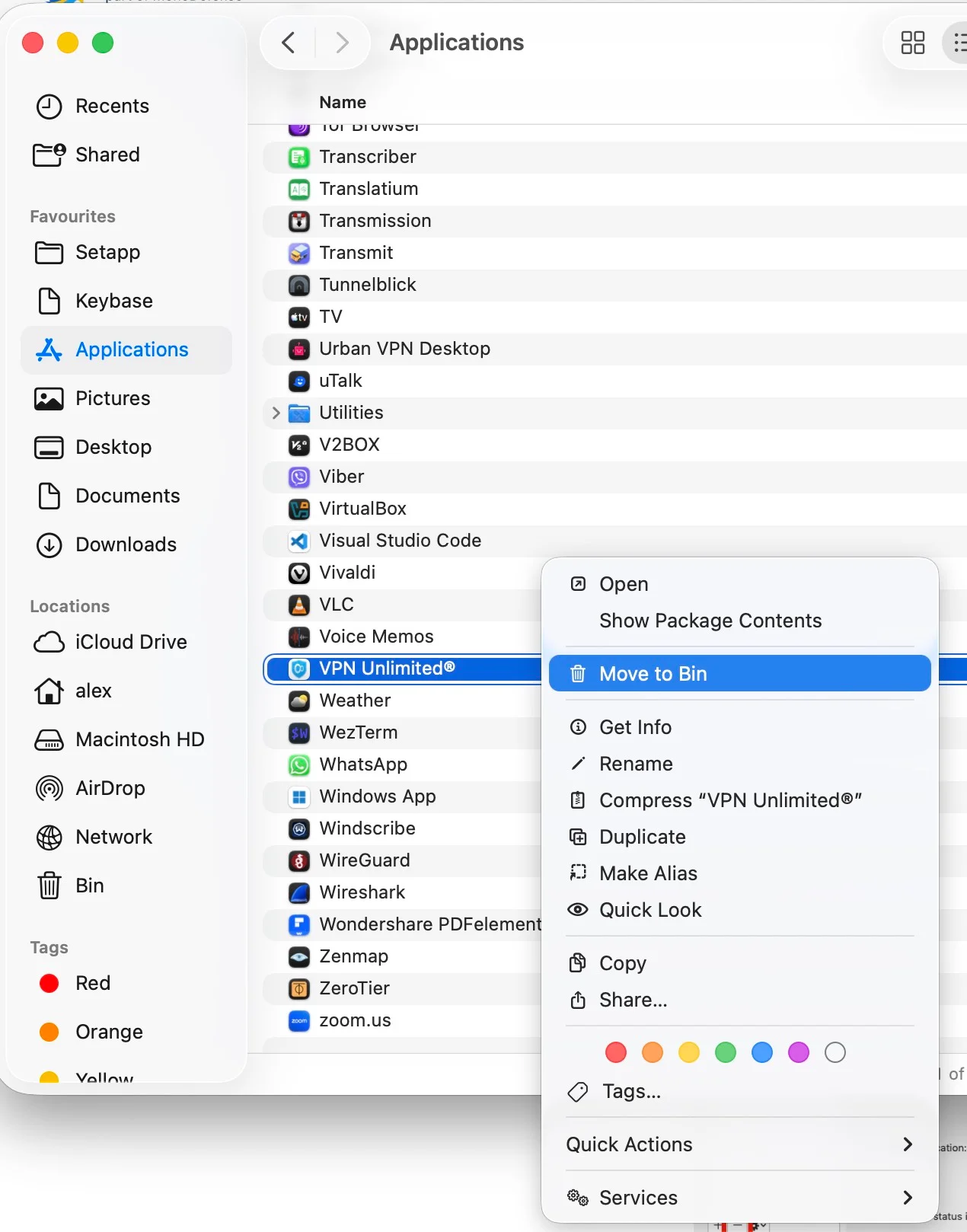
1. Navigate to the "Applications" folder.
2. Right-click the VPN Unlimited icon and select "Move to Trash", or simply drag-and-drop the application icon to the Trash.
3. You may also use any third-party uninstaller, which often removes associated profiles automatically.
Optional: Manual removal of the VPN profile
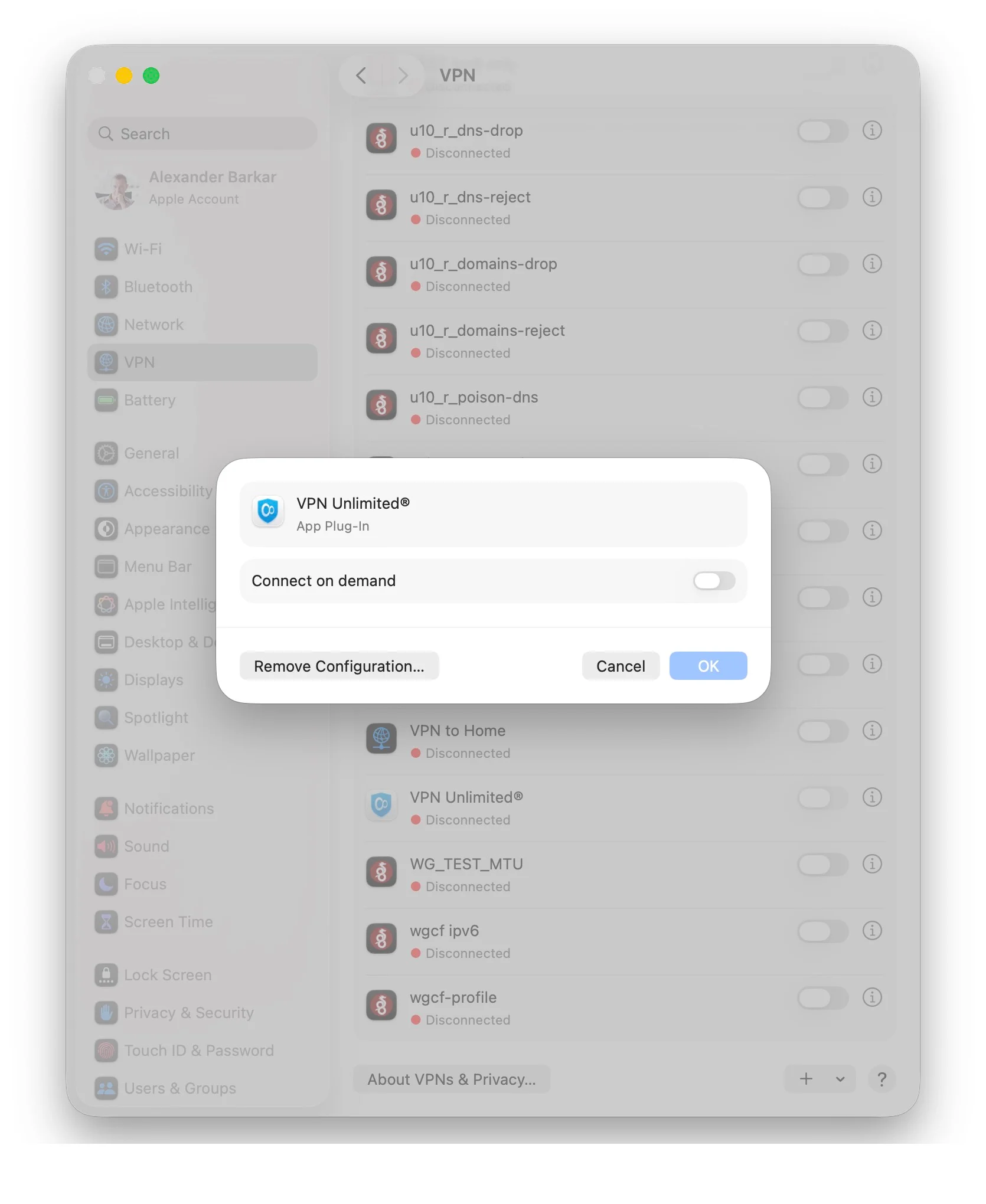
If you wish to remove the VPN profile configuration manually (if it remained after the application was deleted) or if your uninstaller did not remove it:
1. Go to Settings (or System Preferences) > VPN.
2. Select the VPN Unlimited profile and remove the configuration.
Reasons to Use VPN Unlimited for macOS
- To safeguard your personal information with a top-notch AES-256 encryption
- To protect internet connection while using unsecured public WiFi hotspots
- To get around internet censorship, bypass geo-limitations, and tear down VPN blocks
- To enjoy streaming videos with the fastest possible connection speed
- To torrent anonymously and securely without putting your privacy at risk
- To keep your online anonymity with extra features: Personal VPN Server and Static IP
Benefits of VPN Unlimited
_3382.png)
Bulletproof privacy on the web
Virtual Private Network by KeepSolid negates any chances of any unauthorized parties reading your data, including your sensitive and private information. Therefore, you can freely send any kind of data over the internet without any worries.

3000+ virtual servers in 80+ locations
VPN Unlimited provides more than 3000 servers in over 80 locations all around the world. It means, you can always choose a virtual server that suits best for your needs. Wondering what virtual server to choose? Enable the Optimal server option and our VPN picks the best server for you.

Access to global streaming services
Virtual Private Network by KeepSolid helps you to unblock Disney+, BBC iPlayer, Hulu, Sony Crackle, and other popular streaming services. That’s not to mention viewing other geo-restricted websites and blocked services!
_3383.png)
Unlimited devices
With a VPN subscription, you can protect up to 5 devices (you can increase the number of devices an unlimited number of times), including macOS, iOS, Android, Windows, Linux, and even some browsers. Also, you can extend this amount to as many devices as you need.

No more time to waste! Download VPN Unlimited and start browsing the web privately, securely, and without any restrictions!