适用于所有主要平台的 WireGuard® 配置指南
WireGuard®是最新的 VPN 协议,具有最先进的安全性和极大优化的性能。该协议最初是针对 Linux 内核发布的,但现在它是跨平台的,可以部署在任何平台上。
有关 WireGuard 的更多信息您可以在文章什么是 WireGuard® 中找到这些功能。协议?
本指南为您提供有关如何设置 WireGuard® 的分步说明。 Android 设备上的 VPN 连接。
有两种方法来配置 WireGuard®联系。选择其中任何一个并确保您的在线隐私:
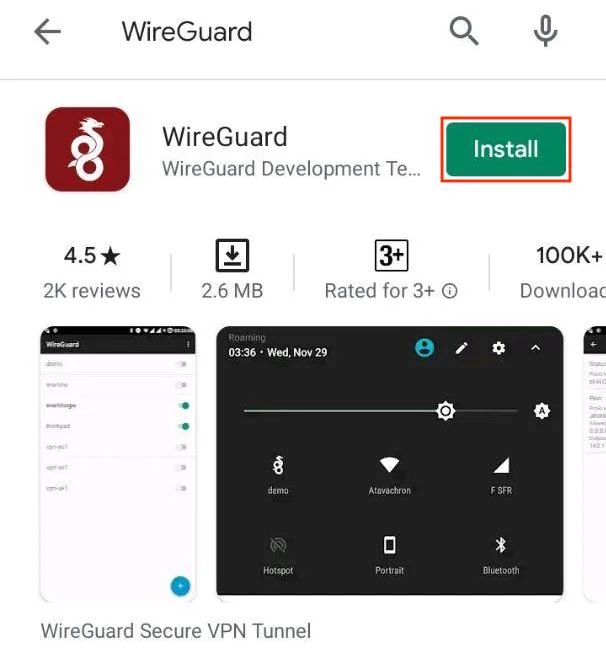
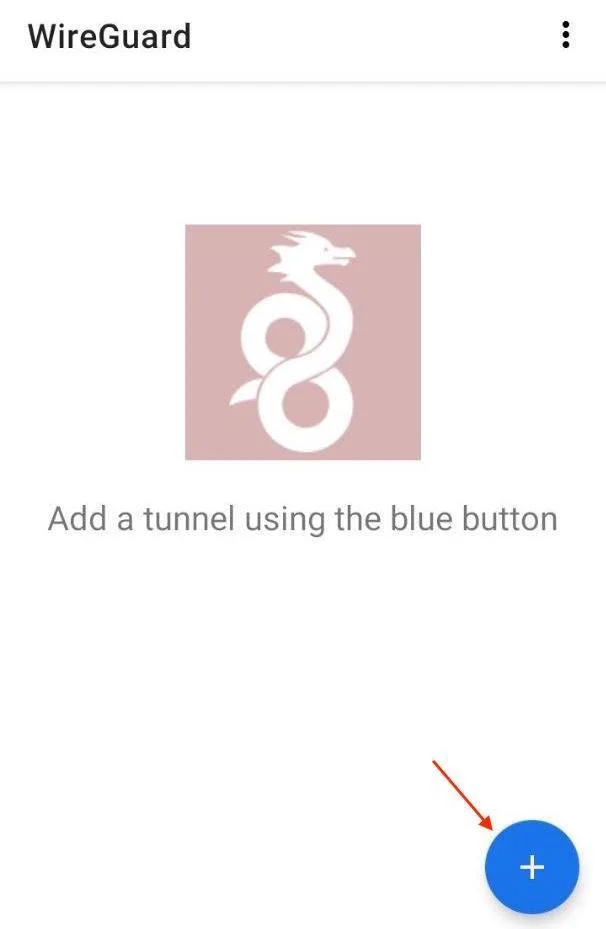
3.运行此应用程序并按右下角的

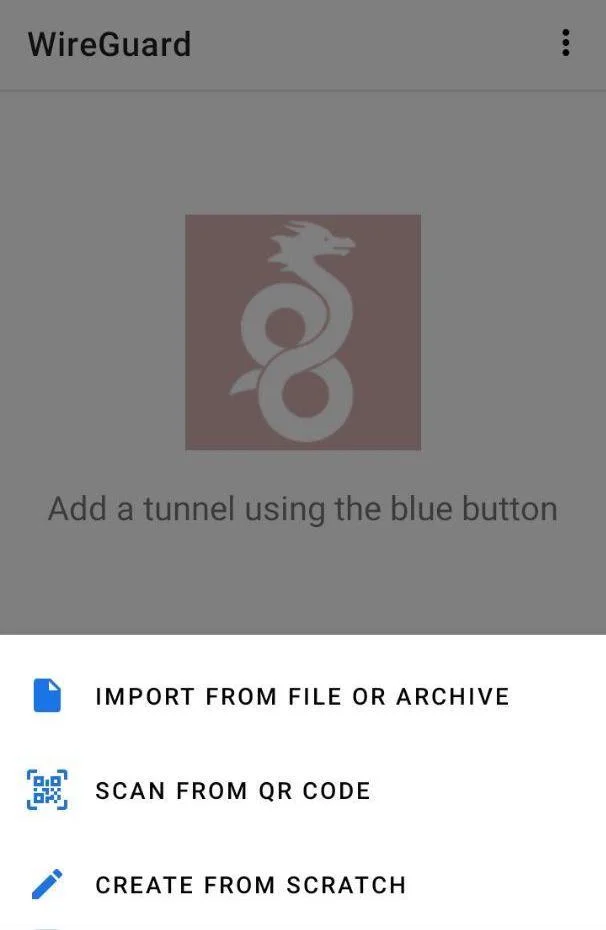
4.选择您想要导入 VPN 配置的方式。我们建议您使用QR 码或从文件导入以防止可能出现的打印错误。
Error 500 (Server Error)!!1500.That’s an error.There was an error. Please try again later.That’s all we know.

开始使用我们可靠的 VPN 解决方案,让您的浏览更加安全!

如何使用 VPN Unlimited 配置 WireGuard® 连接?
注意: VPN Unlimited 与运行 Android 4.4 及更高版本的设备兼容。
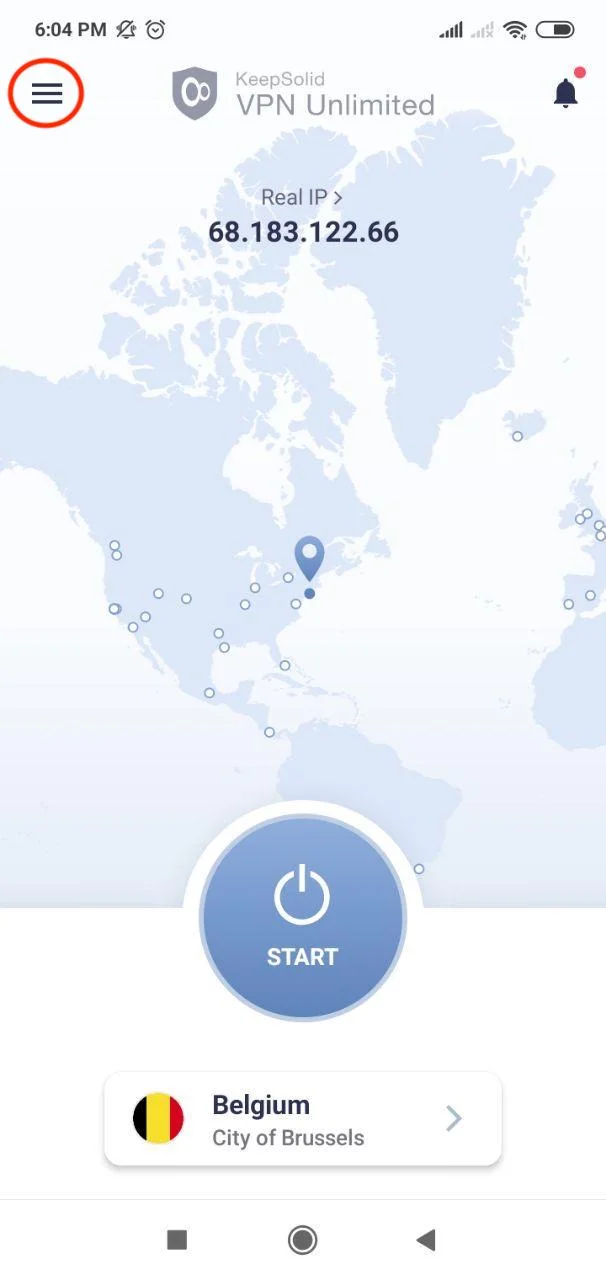
1.在您的 Android 设备上启动最新版本的 VPN Unlimited 应用程序。
2.点击主屏幕左上角的

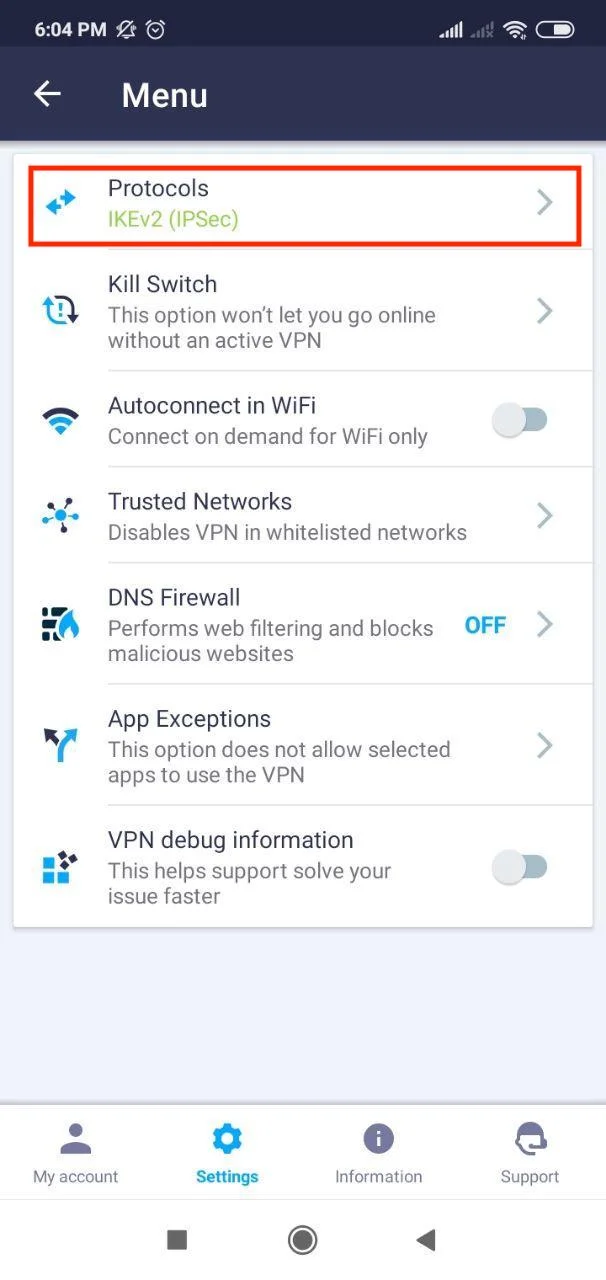
3.选择设置选项卡,然后选择协议。
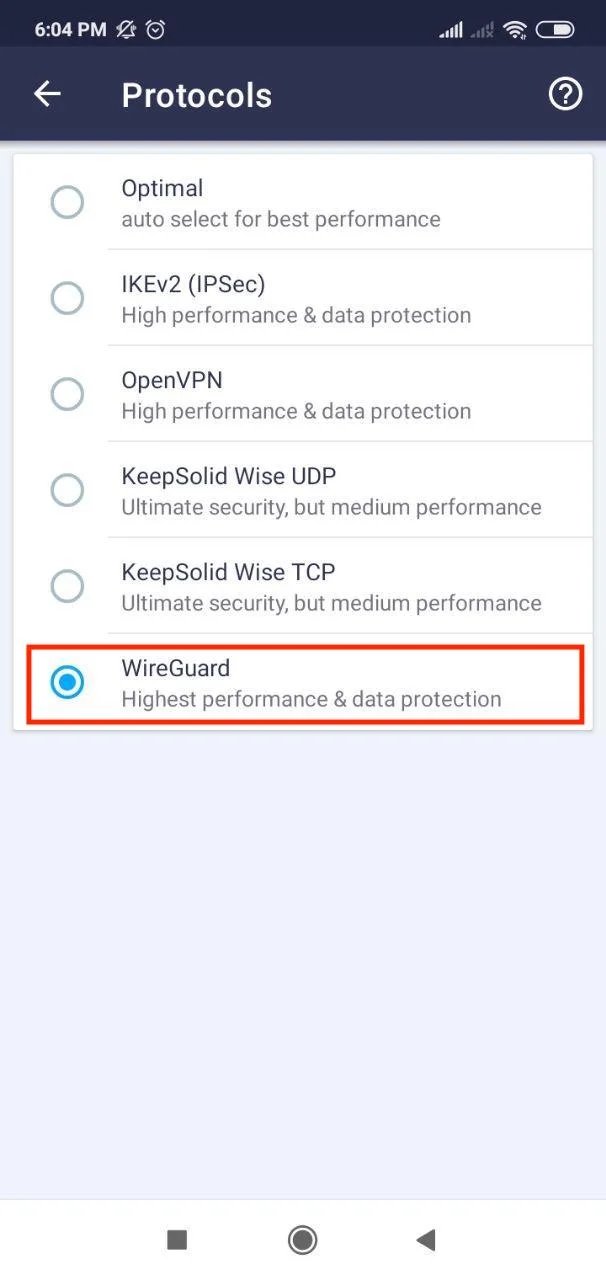
4.选择 WireGuard® VPN 协议,然后点击左上角的箭头返回主屏幕。
注意:如果您的 VPN 连接处于活动状态,它将使用所选的 VPN 协议自动重新连接。
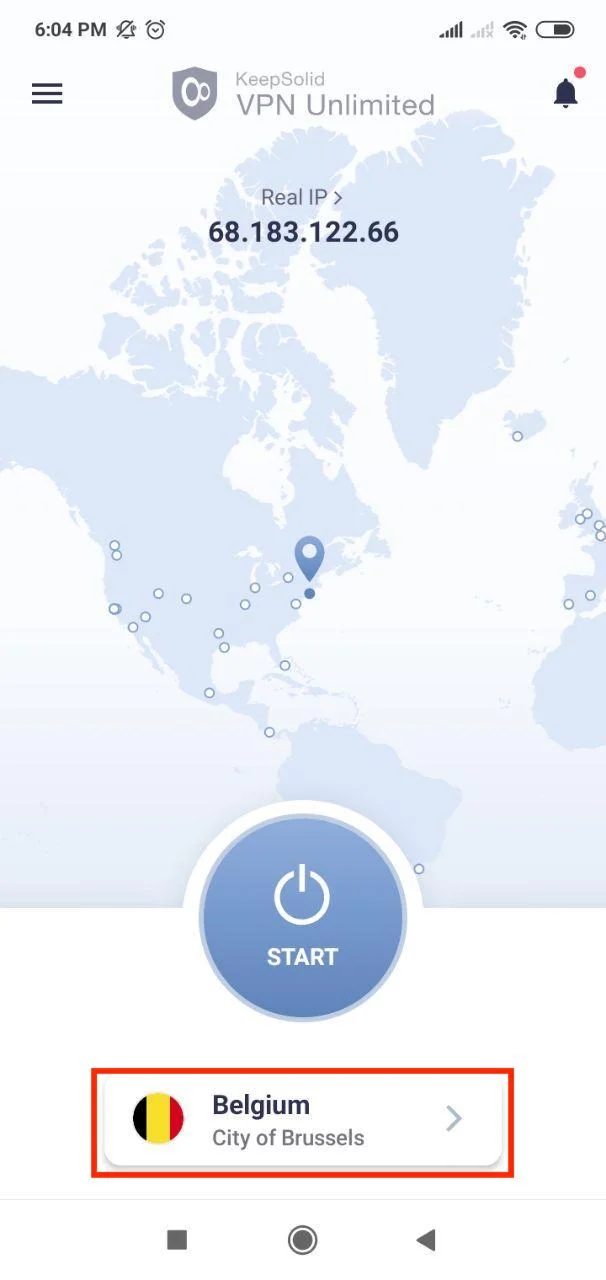
5.选择适当的服务器位置并享受安全浏览。
Error 500 (Server Error)!!1500.That’s an error.There was an error. Please try again later.That’s all we know.
“WireGuard”是 Jason A. Donenfeld 的注册商标。