如何在 Windows 7 上安装 VPN Unlimited 应用程序
本指南包含有关如何开始使用适用于 Windows 7 的可靠 VPN 并轻松管理它的详细分步说明。在本手册中,您将找到所有问题的答案:如何在 Windows 7 上设置 VPN?如何从 Windows PC 或笔记本电脑中删除 VPN 应用程序?请务必检查全部!
注意:VPN Unlimited 也可以作为 MonoDefense® 安全捆绑包的一部分提供。
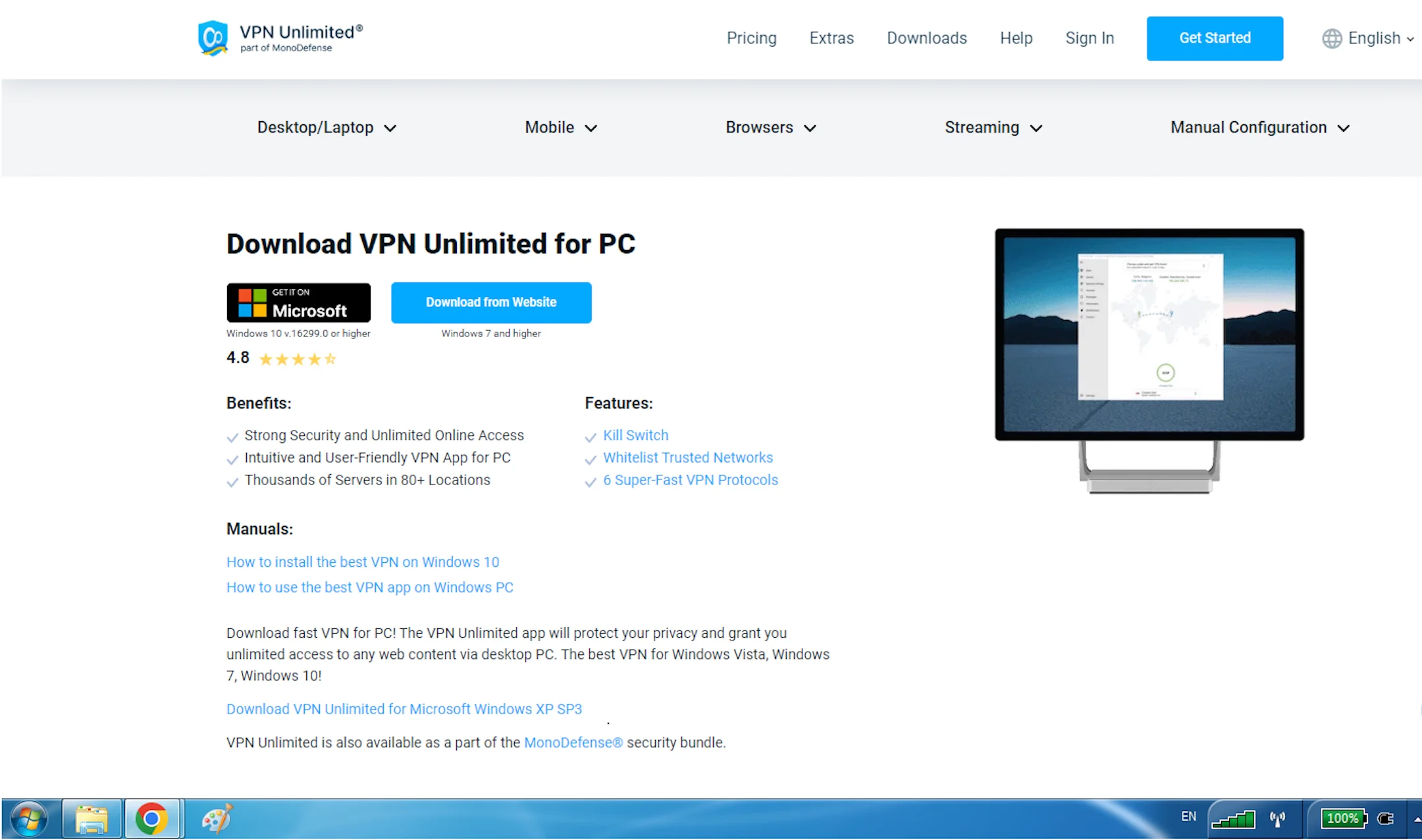
文件下载将开始。此过程完成后,启动下载的安装程序。
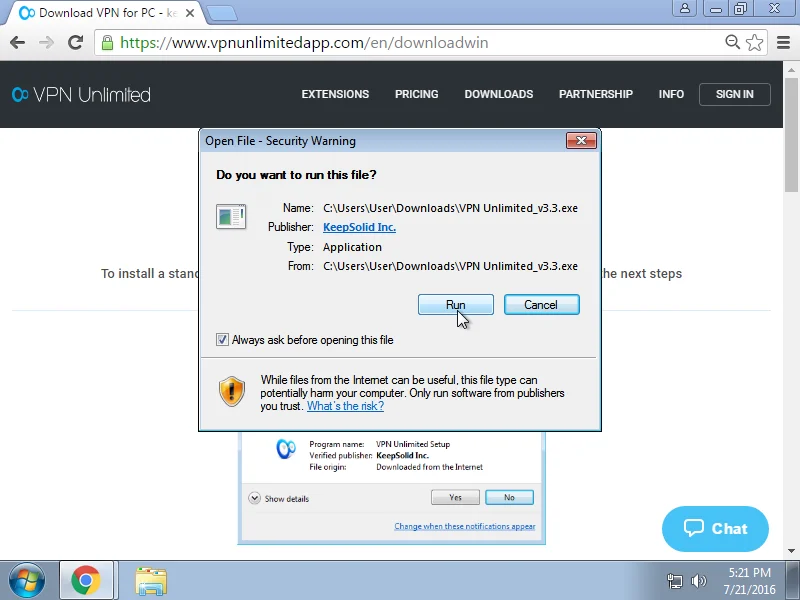
如果您的操作系统启用了用户帐户控制,您可能会收到以下警报:
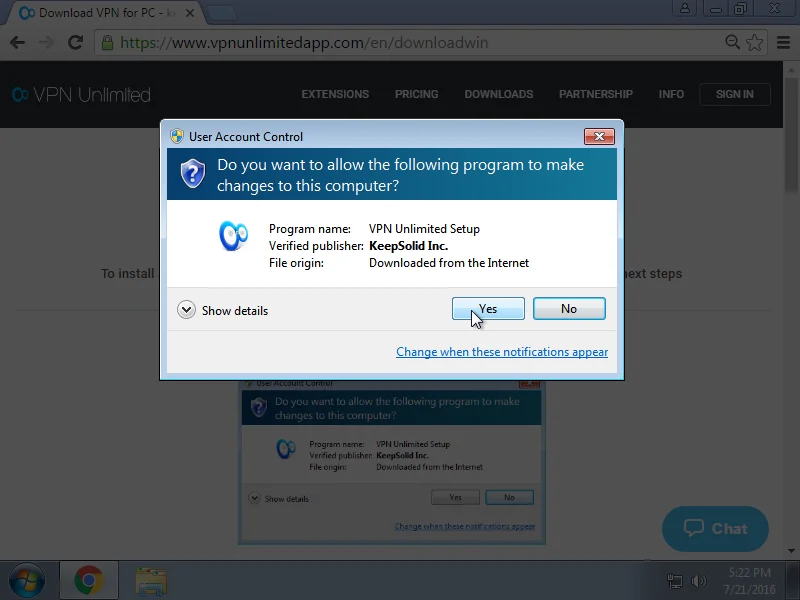
要继续安装过程,请单击是。
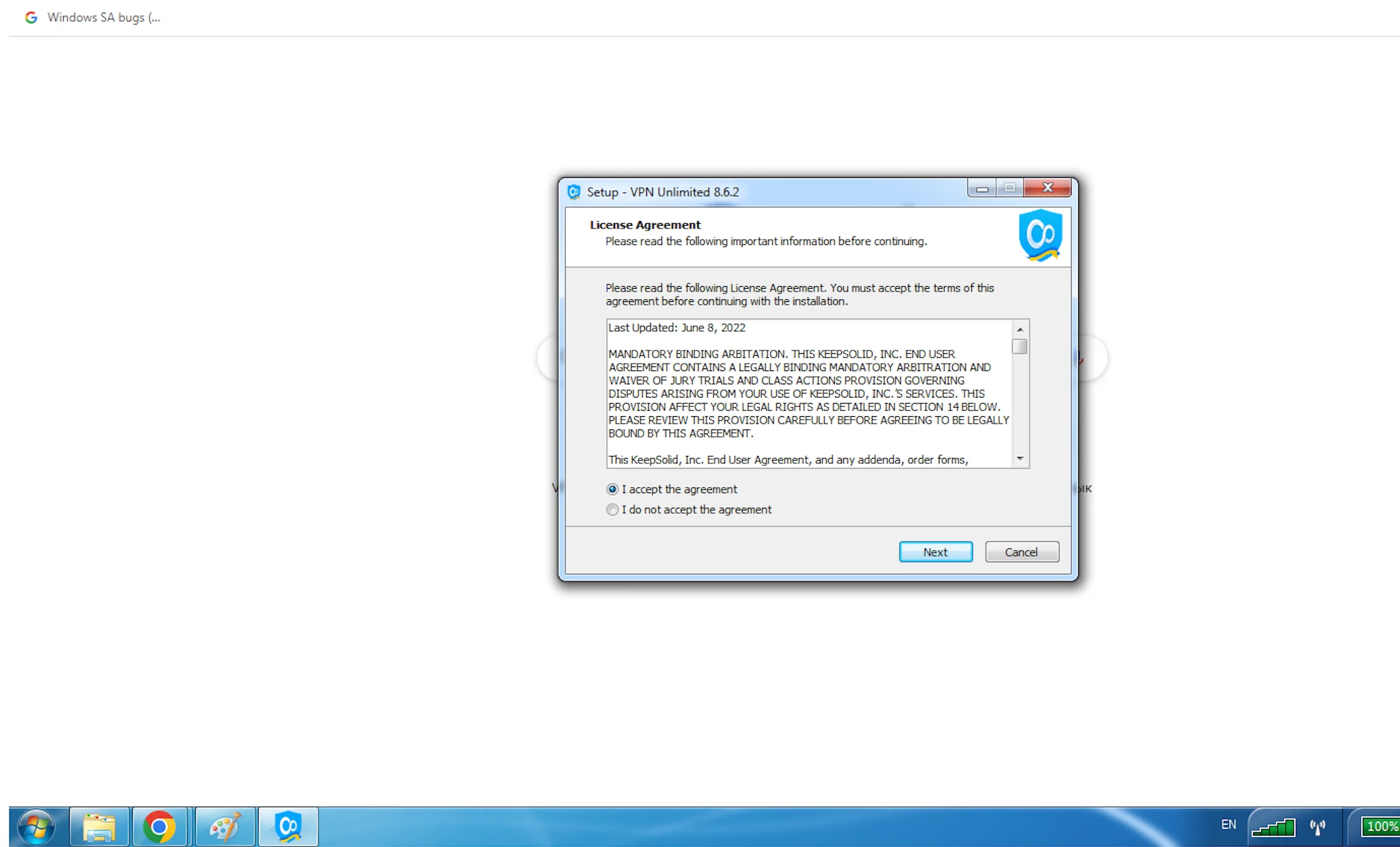
然后您需要接受许可协议。为此,请选择我接受协议选项,然后单击下一步。
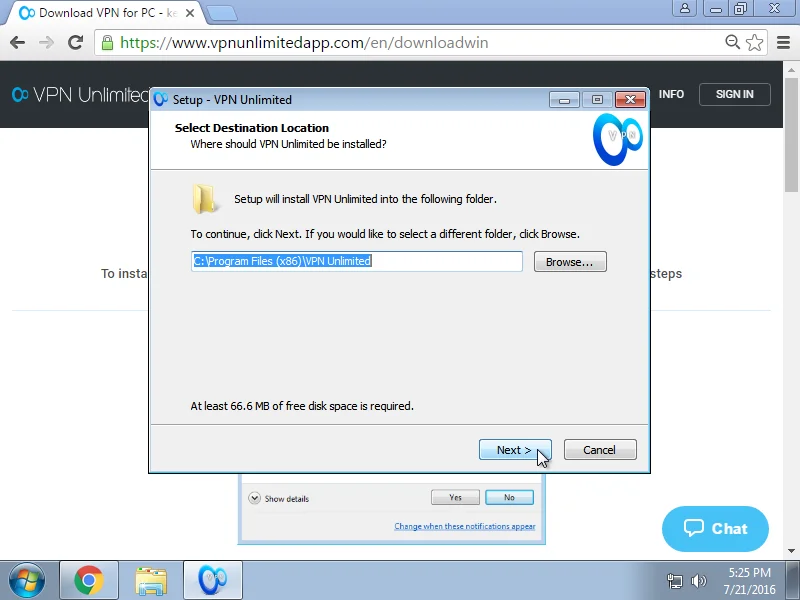
选择在 Windows 7 上安装 VPN Unlimited 应用程序的路径,或保留默认路径并单击下一步。
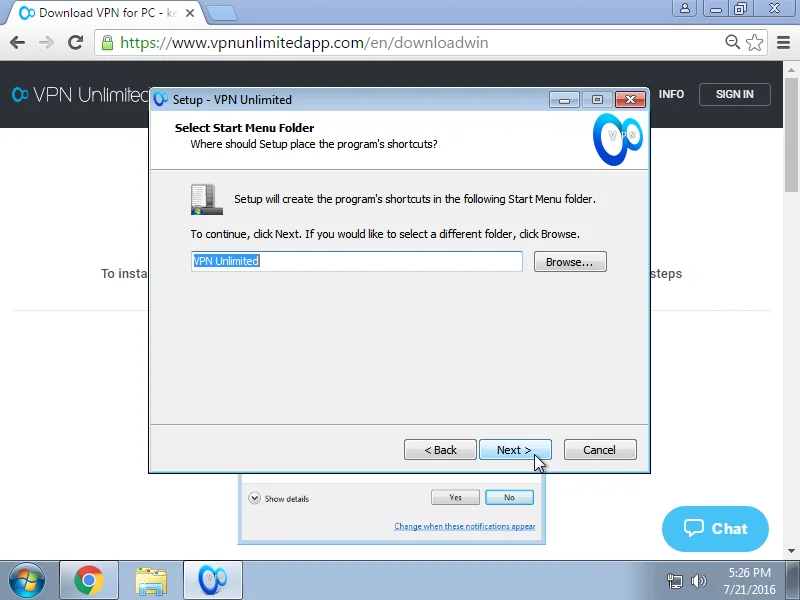
打印“开始”菜单中的文件夹名称,将在其中创建程序的快捷方式,或保留默认名称并单击下一步。
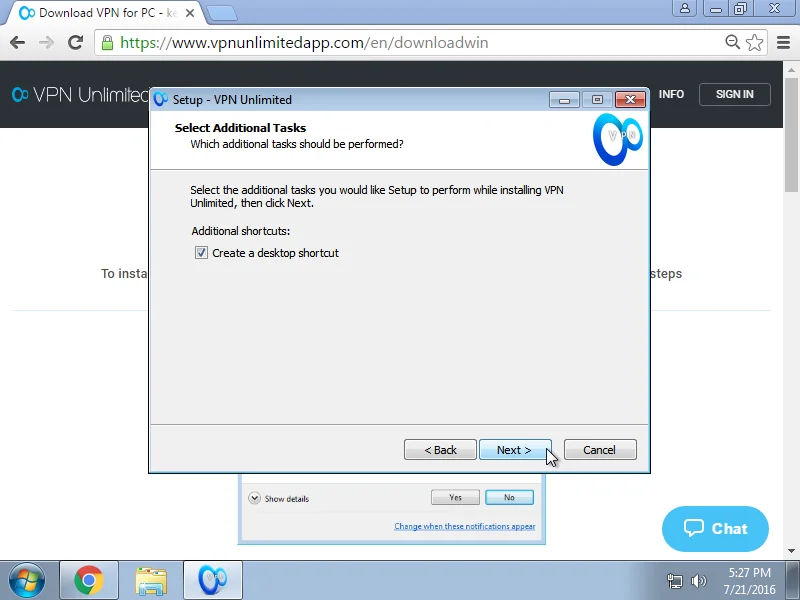
如果您想创建快捷方式以从桌面启动我们的 Windows 7 VPN 解决方案,请选中该复选框。
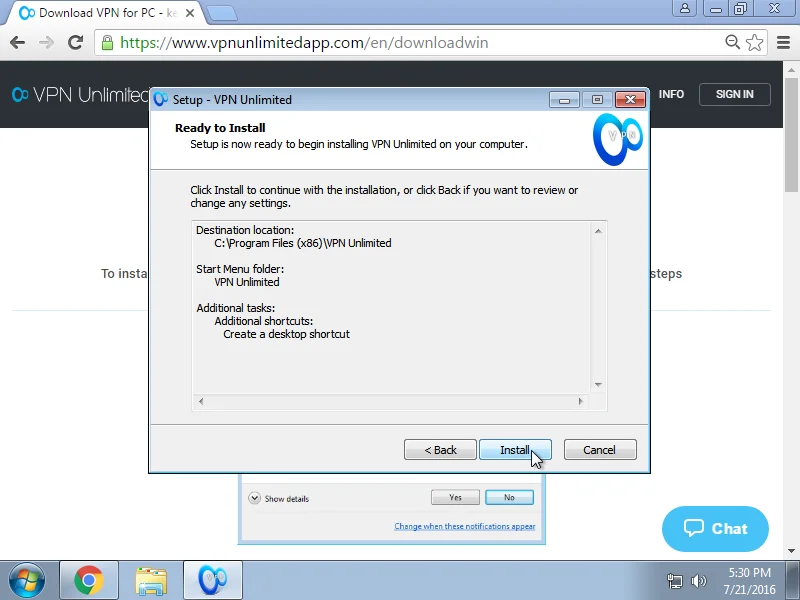
在下一个窗口中,单击安装开始在 Windows 7 上安装 VPN。
应用程序文件的复制过程将开始。
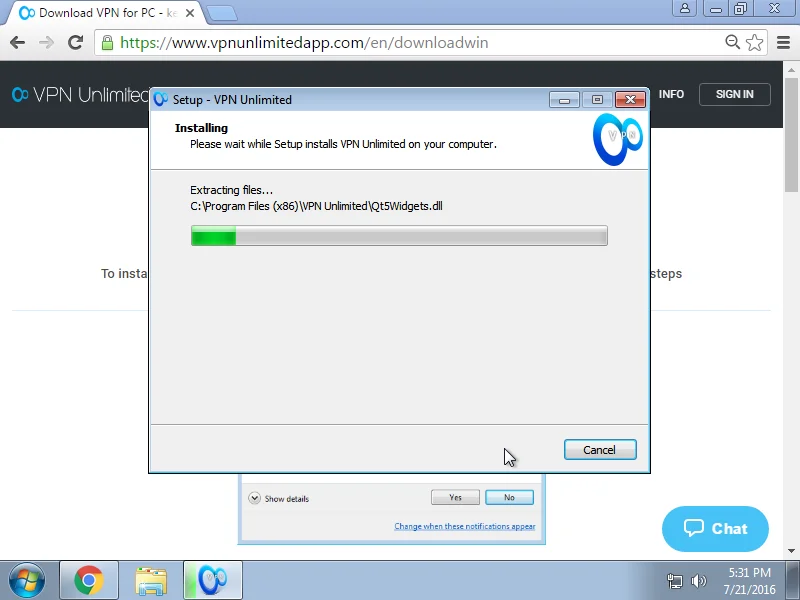
如果您的 Windows PC 上未安装运行该程序所需的 Microsoft Visual C++ Redistributable 软件包,则会自动下载该软件包。
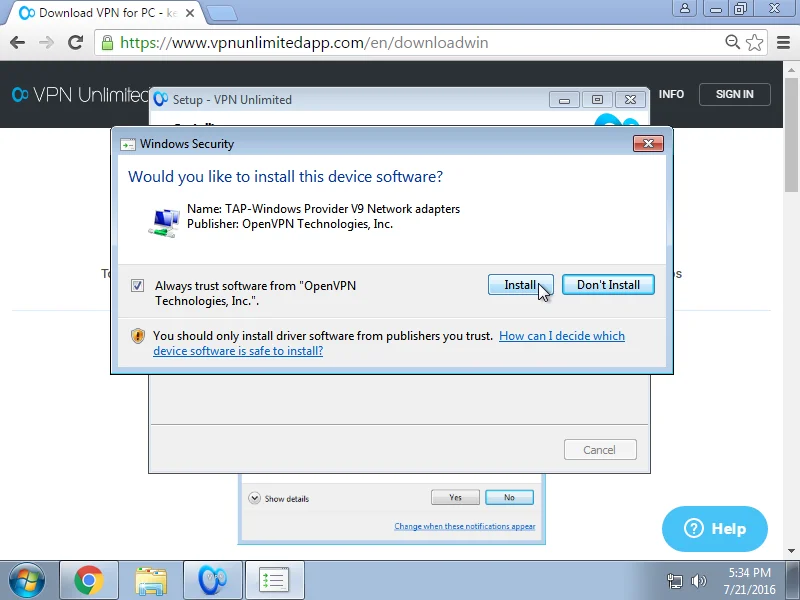
下一步是安装 TAP 适配器。为此,请选中标记为始终信任来自“OpenVPN Technologies, Inc.”/“WireGuard LLC”的软件的复选框,然后单击安装。
成功安装 VPN Unlimited 后,点击完成。
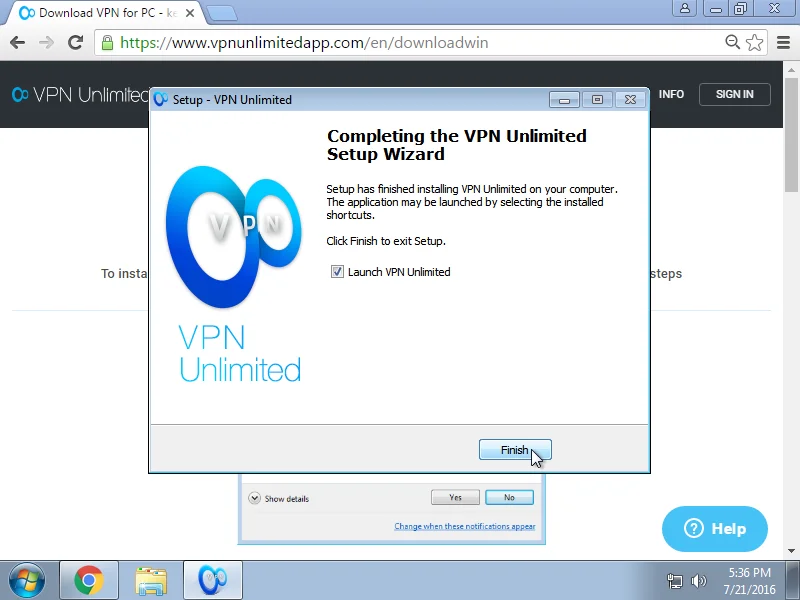
如果您勾选该复选框,VPN Unlimited 将在您点击完成h 后自动启动。
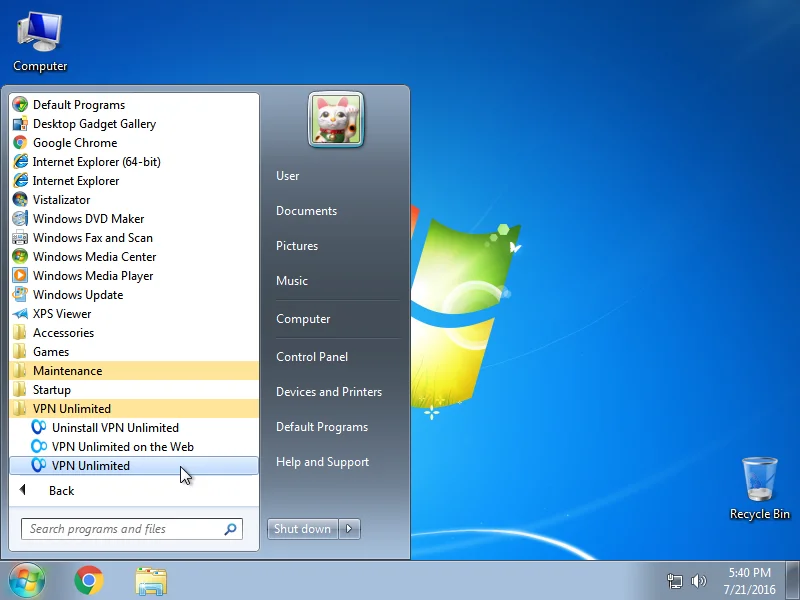
安装程序将在“开始”菜单中创建一个用于启动程序的快捷方式:开始 > 所有程序 > VPN无限> VPN 无限。
如果在应用程序启动时,Windows 防火墙或系统中安装的任何其他防火墙请求 open-vpn.exe 和 vpn-unlimited.exe 文件访问网络的权限,请允许访问。
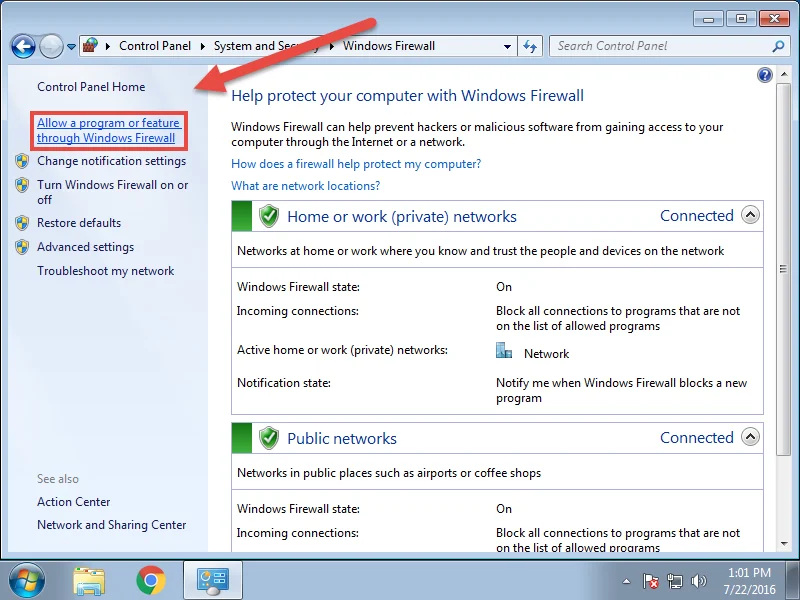
如果您不小心在 Windows 防火墙上拒绝了应用程序的访问,请导航至开始菜单 > 控制面板> Windows 防火墙。
选择允许程序或功能通过 Windows 防火墙选项。
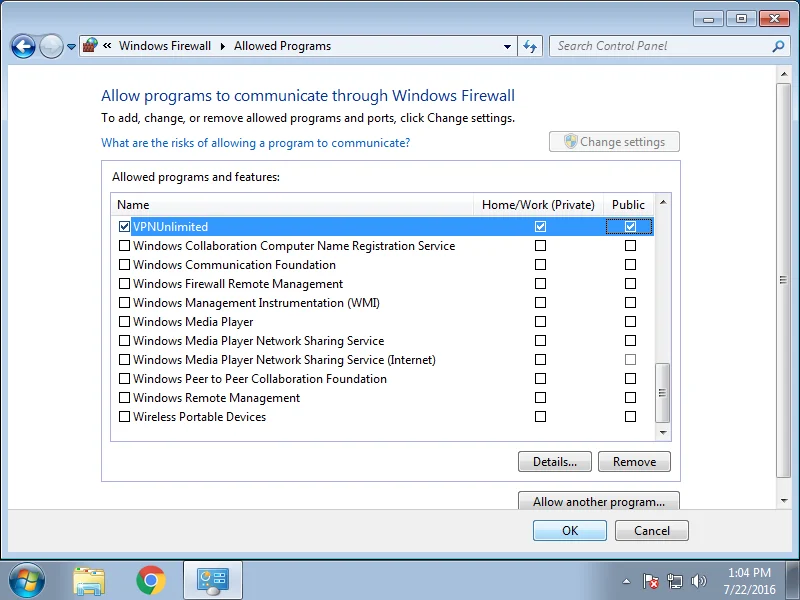
在列表中找到 VPNUnlimited,点击更改设置,然后勾选 VPN Unlimited 的两个复选框。然后点击确定。
要开始您的无限制在线之旅,您应该登录您的 VPN Unlimited 帐户。如果您已有 KeepSolid ID,只需输入您的电子邮件地址和密码,然后点击登录按钮。您也可以继续使用 Facebook 或 Google 帐户。
要创建新的 KeepSolid ID,请点击创建 KeepSolid ID,输入您的电子邮件地址和密码。然后重复您的密码,选中通过继续,您同意我们的...旁边的框,然后点击注册按钮。
有关 KeepSolid ID 以及为何需要它的更多信息,您可以在此页面上找到。
要充分利用我们可靠的 VPN 应用程序,请查看我们关于如何在 Windows 上使用 VPN Unlimited 的综合指南

通过一次订阅,您可以保护最多 5 台甚至 10 台不同的设备:iOS、macOS、Android、Windows、Linux 和最流行的浏览器(Chrome、Firefox、Opera 和 Edge)。




2.删除 Windows 7 的 VPN Unlimited
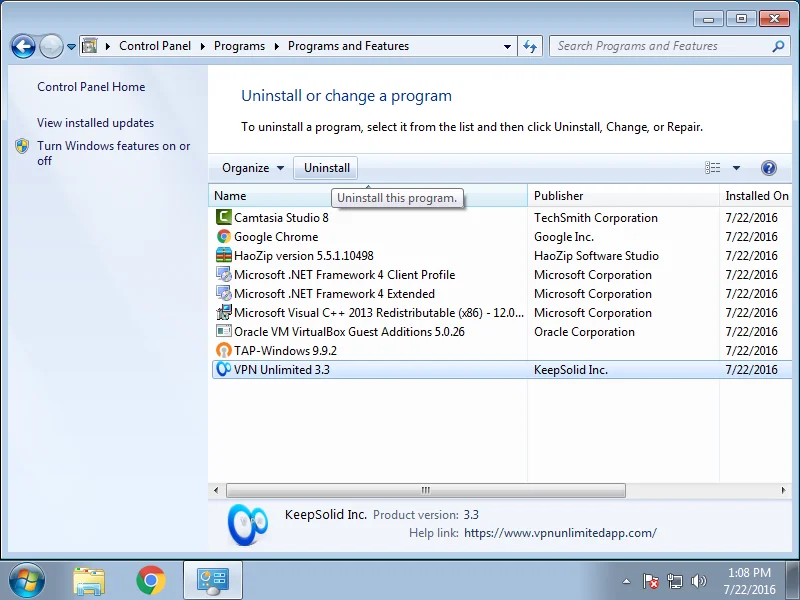
要从 Windows 7 设备中删除 VPN,请导航至控制面板 > 程序 > 程序和功能。选择VPN Unlimited,然后点击卸载。
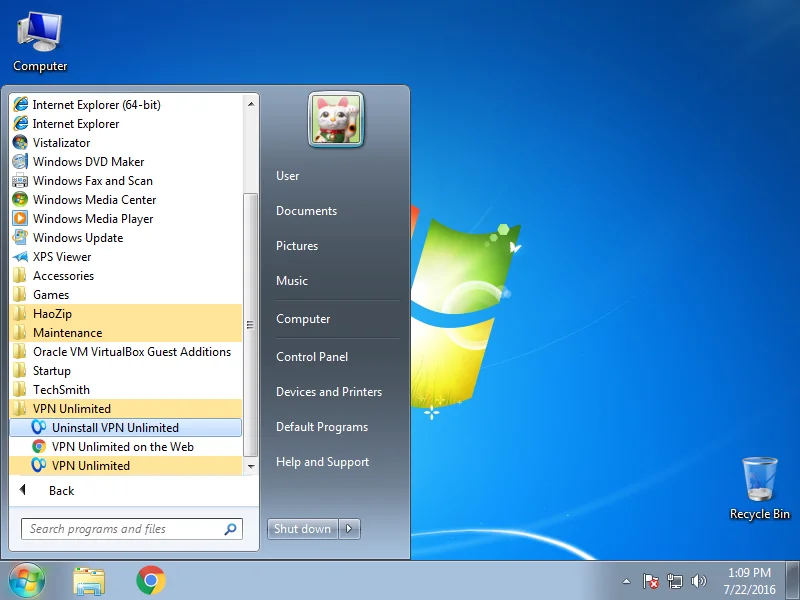
或者转到开始菜单> 所有程序 > VPN Unlimited,然后选择卸载 VPN Unlimited。
3.将适用于 Windows 7 的 VPN 更新到最新版本
VPN Unlimited 在启动时会自动检查更新。但是,您可以手动检查新版本:打开应用程序,导航至菜单 > 信息,然后点击检查更新。
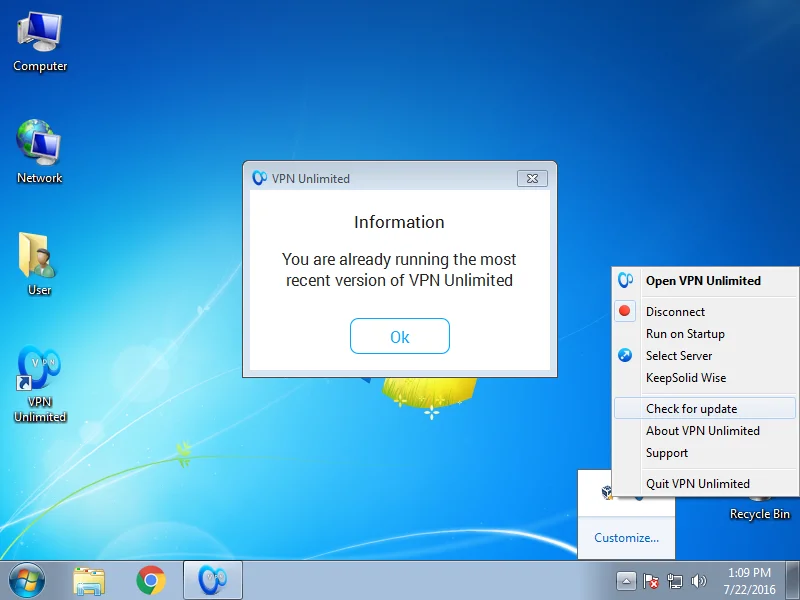
如果有新版本可用,系统将提示您下载并安装它。
如果更新过程中出现错误,您将需要删除旧版本的应用程序,如第 2 节中所述。
删除过程完成后,按照第 1 节中的说明从网站安装新版本的应用程序。
如果您对我们的 VPN 服务有任何疑问、意见或建议,请随时通过 [email protected] 联系我们的客户支持团队。我们随时准备全年 365 天、每天 24 小时为您提供帮助!
我们最好的 Windows 7 VPN 能为您带来哪些好处
- 使用 AES 256 位加密保护您的在线流量和敏感信息
- 无限制地访问任何受地理封锁的网站和受限服务
- 使用公共 WiFi 热点和其他不安全的网络,没有任何风险
- 在不同服务器位置之间切换,没有任何延迟或额外费用
- 利用静态 IP 地址和个人 VPN 服务器功能增强您的在线隐私
- 一次付费,永久使用 - 独特的终身订阅计划
VPN Unlimited 如何为您提供所有这些好处
首先,我们的 Windows 7 VPN 客户端使用军用级 AES-256 加密算法加密您的互联网流量,该算法被美国政府视为值得信赖的顶级保护。
然后,VPN Unlimited 在您的设备和所选 VPN 服务器之间创建安全连接(也称为私有 VPN 隧道),并通过此隧道路由已加密的流量。
最后,我们的 Windows 7 PC VPN 隐藏您的真实 IP 地址,并为您提供一个属于所选 VPN 服务器的虚拟 IP 地址。从现在开始,您可以放心地上网冲浪,没有人在监视您!