How to Setup Two-Factor Authentication for Home Network Security
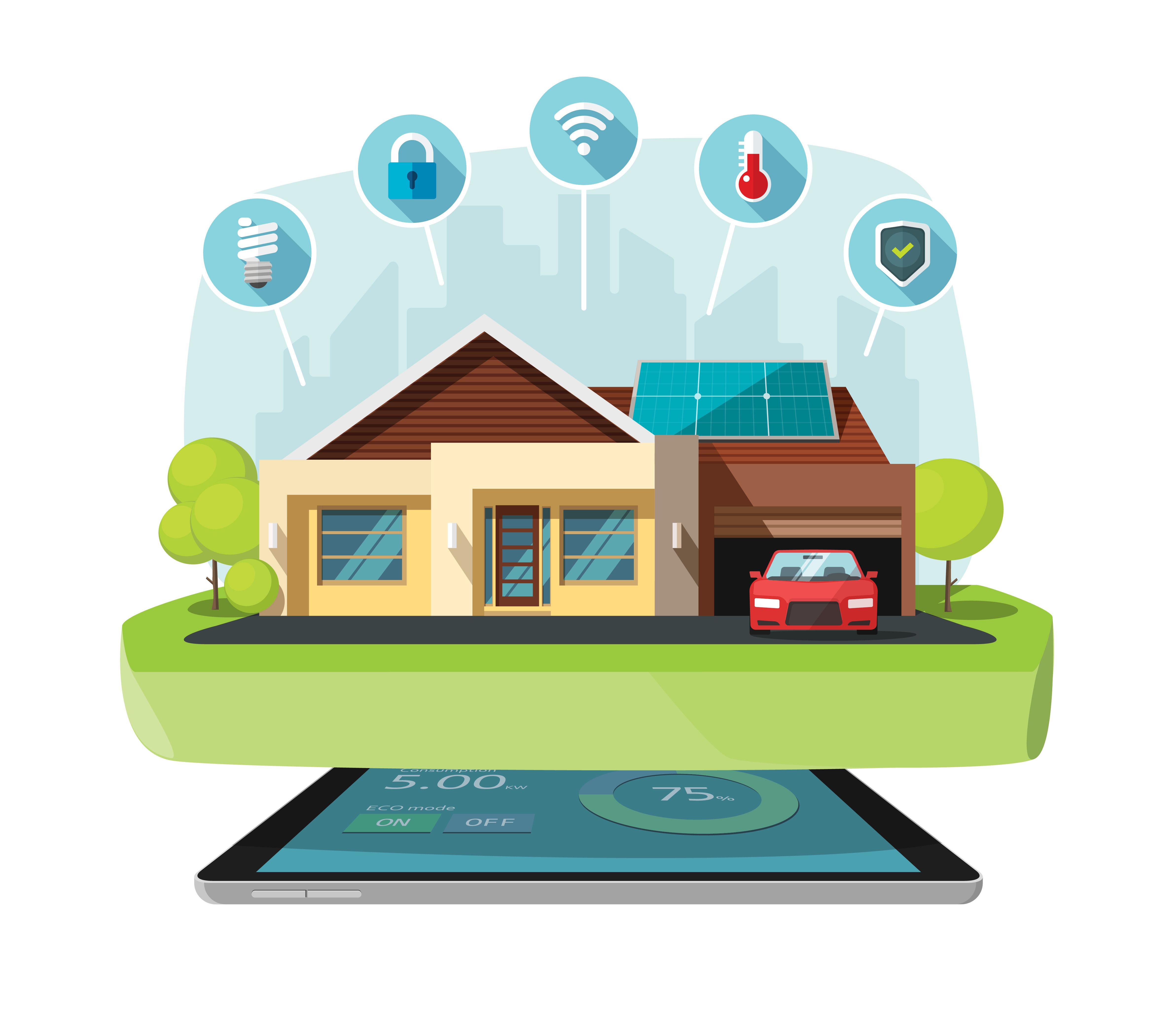
A big variety of digital threats have appeared with the rise of Smart Homes' popularity. And more often our Internet-of-Things networks are becoming a target for potential privacy invasions and spyware. But we still can enjoy the convenience of Smart Home technologies, by taking a few simple measures and using reliable security tools. Let’s have a comprehensive look at such aspects of digital safety as two-factor authentication and figure out how to enhance the security of your home network.

Understand What Two-Factor Authentication Is
Whatever service or app you use, you probably need a login and password to authorize it. Of course, digital hygiene is a cornerstone of cybersecurity, but creating a unique strong, and long password is not always enough. No matter, how reliable your credentials are, they can be still vulnerable if the service where you use them stores them improperly and then has its server breached. It happens regularly and unfortunately, we can do nothing about this.
Moreover, our passwords are vulnerable due to the human factor. We are still the weakest link in the cybersecurity system and even smart and tech-savvy people may enter their credentials on phishing websites or become a victim of social engineering. The solution is Two-Factor Authentication.
What is TFA?
Two-Factor Authentication is a digital security method that requires users to provide two forms of identification before accessing an app or service. This adds an additional protection layer beyond the classic username and password. It may include SMS verification, authenticator apps, and biometric authentication as the second authentication factor. The TFA method can be used on a variety of network security systems. So let’s have a closer look at them.
Familiarize Yourself with Potential Network Security Platforms
There are various network security platforms available for home use. Before choosing one, compare its features and pricing and ensure the platform integrates with two-factor authentication. Potential network security platforms for home use include
- Routers with built-in security features (Norton Core, Bitdefender Box, and CUJO)
- Third-party security software (antiviruses, password managers, VPN clients)
- Network security appliances (firewalls and intrusion detection systems).
Set-Up the Platform
By default, almost all smart devices already come with multi-factor authentication. If you have a device without it, you can install a third-party application like Google Authenticator or KeepSolid Authenticator. Most smart devices come with mobile apps with a built-in TFA, but you can still install an extra solution. Security can’t be enough! After you’ve chosen a network security platform, the next step is to configure it. Usually, a manufacturer provides a step-by-step guide on this and explains how to enable all the needed features including the two-factor authentication.
Configure the Device's Software
After you’ve set up the network security platform, the next step is to configure each device connected to the network. Depending on the device you want to configure TFA on, instructions may vary. You can use email, mobile phone, or an authenticator app. Here are some universal guides for mobile devices, PCs, and smart home devices. If you find some differences, the best practice is to apply to official manufacturers' documentation or customer support.
- Download and install an authenticator app, such as Google Authenticator or KeepSolid Authenticator from the App Store or Play Market.
- Enable 2FA on the account you want to protect.
- Open the authenticator app and scan the QR code provided by the account you are securing.
- Enter the security code generated by the Authenticator app to verify your identity.

- Download and install an authenticator app or use a web-based authentication service, such as Google Authenticator or Authenticator by KeepSolid.
- Enable 2FA on the account you wish to secure.
- Follow the instructions to connect the account to the authenticator app or service.
- Enter the generated security code when prompted to verify your identity.
- Check if the device supports 2FA and turn it on it if available.
- Find an authenticator app or a web-based authentication service compatible with your device.
- Follow the guide on how to connect the device to the authenticator app or service.
- Enter the generated code when necessary to verify your identity.

Note: If your smart device is not compatible with authenticator apps, try to use TFA based on email verification.






Know What Kind of Security Devices are Available
Big companies and home networks can both be vulnerable to malware and hackers. Measure to protect include both software and hardware solutions. Here are some examples of physical or virtualized hardware appliances with vendor-specific software installed.
- Firewalls. A firewall is a kind of filter that separates your internal network from the wider Internet. It blocks connections on specific ports, from specific IP addresses, and from machines or networks matching other criteria. You can manage those IP blocklists to create the safe network you need.
- Intrusion Protection Systems (IPS). Network-based intrusion protection systems are created to monitor all of the traffic going through your network.
- Unified Threat Management (UTM). UTMs combine a network firewall, an intrusion detection system, an intrusion prevention system, and other features. This kind of protection is popular with smaller businesses that don’t have significant IT resources to protect their networks.
- Network Access Control. To improve your corporate network security it is crucial to keep your endpoints configured correctly to minimize the risk of getting infected.
- Email Security Gateways. These devices monitor incoming and outgoing email traffic for spam, viruses, phishing attempts, and compromised accounts.
- Web Application Firewalls (WAF). A WAF can block URLs and requests containing suspicious payloads, evidence of SQL injection attempts, and other attacks.
- VPN Gateways. With the rise of remote work, companies want to ensure that their internal network is protected from outer threats. A virtual private network or VPN device can provide this protection. When all the company employees connect to the VPN, their traffic enters the internal network from the VPN device instead of going straight to the internet.
Find and Utilize a Unique Security Code
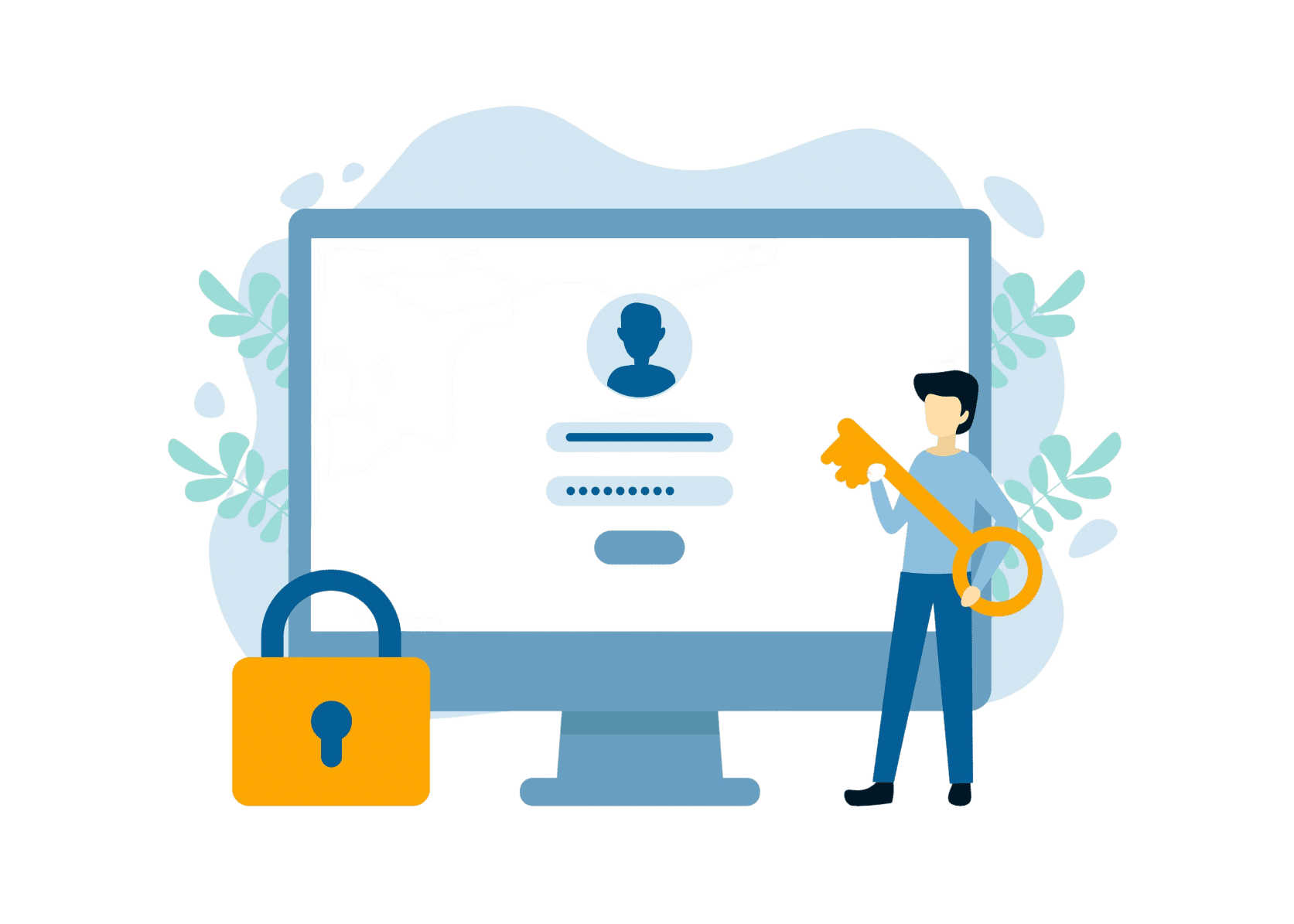
Two-factor authentication (2FA) is an extra layer of security that requires users to provide two different authentication factors to access an account, such as a password and a unique security code generated by a 2FA app. Here are the steps to find and utilize a unique security code in a 2FA app:
- Install a 2FA app: Choose a solution from the App Store or Play Market and download it on your phone.
- Enable 2FA protection for your account: Go to the account settings of the service that you want to enable 2FA for and select "Two-Factor Authentication" in the "Security" settings.
- Scan the QR code with the 2FA app or enter the provided code manually.
- Open the 2FA app and Find the unique security code near the account for which you enabled 2FA. The app will have a unique security code that changes every 30 seconds.
- Then enter this unique security code when logging in to the account and complete the login process.
The generated unique security code should not be shared with anyone, as it is used to verify your identity and protect your account from unauthorized access.
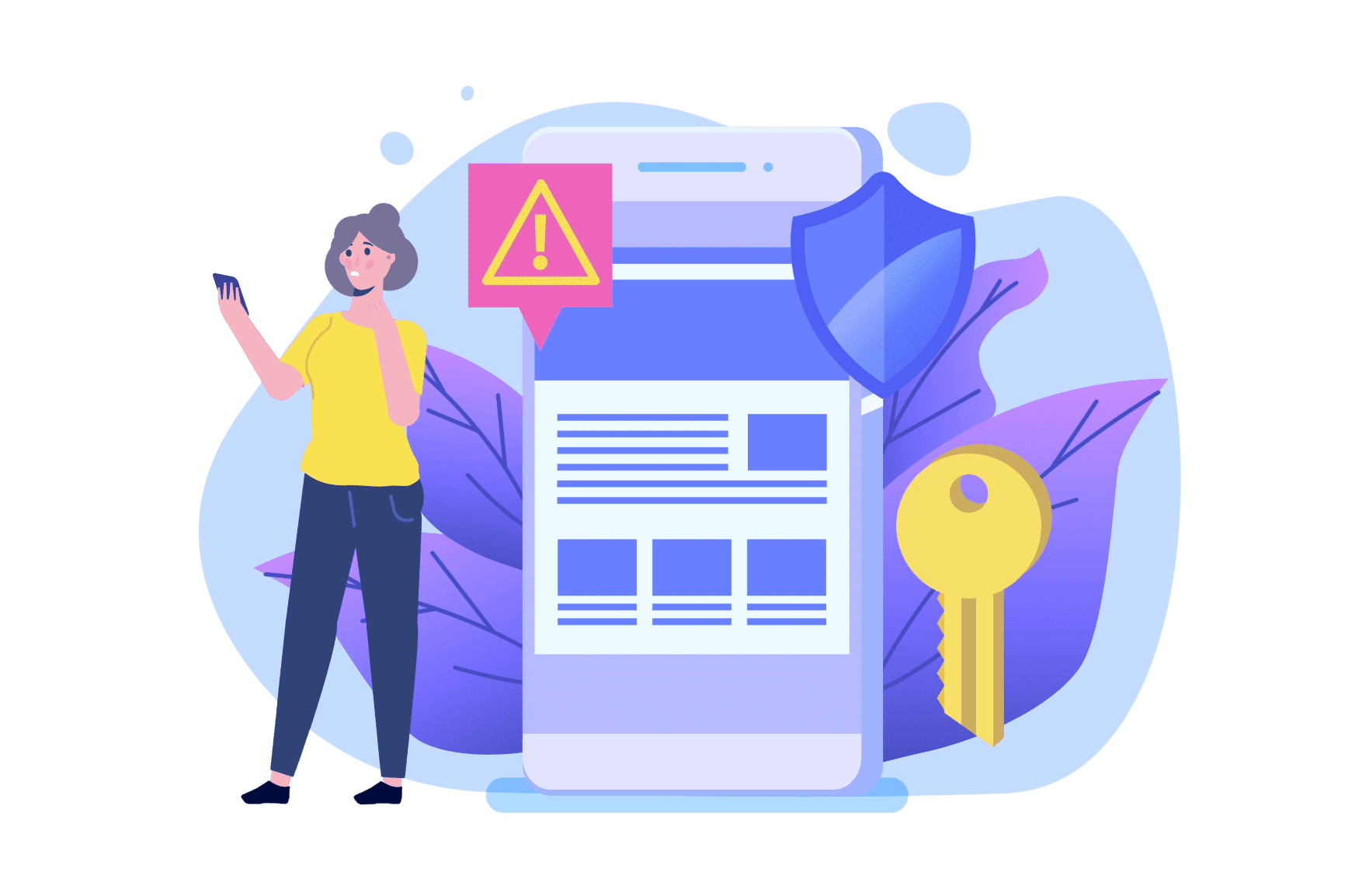
Test and Monitor the Security System Regularly
Home network security system is subject to regular testing and monitoring to guarantee its effective work. As a result of security monitoring, you can get a big amount of important data:
- Potential vulnerabilities. Regular testing can help detect various weaknesses in your network security system. Usually, they are outdated software or misconfigured settings. So you can make timely changes and fix the issues.
- Possible threats. Security system monitoring allows you to detect unusual or suspicious activity and prevent unauthorized access attempts, malware, or phishing attacks, and take appropriate action to mitigate them.
- Industry standards compliance. Testing and monitoring your security system can help you analyze whether you need some improvements and get some insights on how to protect your data and privacy more effectively.
Be Aware of Unauthorized Access Attempts
To prevent any unauthorized access attempts, the best practice is to monitor login attempts, set up alerts, check for suspicious emails, and be cautious of public WiFi. If an unauthorized access attempt is detected, take immediate action to secure the network. Change the security code, notify the network security provider, and update the security system.
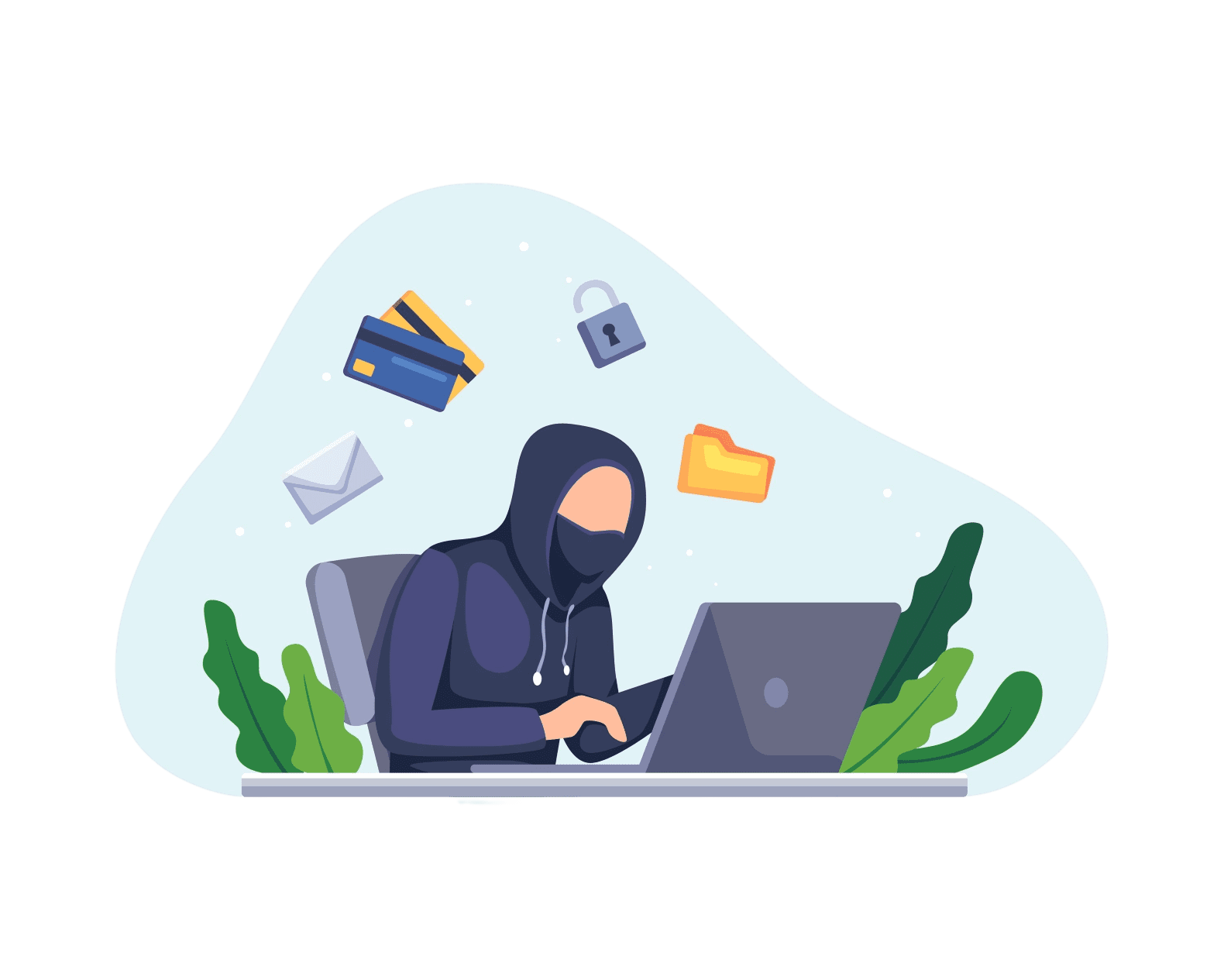
Troubleshoot Common Issues with Two-Factor Authentication
Two-factor authentication (2FA) can be an effective security measure for your home network. However, like any security system, it's not perfect, and some issues may arise. Here are examples of some of them and ways how to troubleshoot them:
- Lost or stolen device: If you’ve lost your 2FA device, you will not be able to access your TFA-protected accounts. That’s why it is important to have a backup device and a backup of all your accounts. If you have any issues with authorization you can always apply to the Customer Support service.
- Incorrect security code: If you see an error about the correctness of a unique security code, ensure that you are entering the right one and that the time on your device is accurate. Some services also allow the regeneration of a new code.
- Compatibility issues: Depending on the year of manufacturing of your device it can be not compatible with the chosen 2FA protection method. Try email or mobile phone method rather than an authenticator app or upgrade your device or browser.
- False positives: Sometimes, 2FA can be triggered incorrectly, which may result in a false positive. In this case, contact the support team of the authentication service you are using and follow their process to regain access to your account.
- Inconvenient or bulky: Some users consider the 2FA method to be inconvenient. But you can believe us, restoring and managing losses of data leakage or privacy violence can be much more inconvenient. So, the best practice is to use 2FA as a compulsory protection measure.
Utilize Tips to Further Strengthen Home Network Security
As we’ve already said, security can’t be enough. So, in addition to two-factor authentication, you can check out more methods to protect your home network:
- Multi-factor authentication
- Install Malware Protection
- Secure your WiFi
- Create Two Home Networks
- Change default usernames and passwords
- Buy From Trusted IoT Brands
- Choose Devices That Update Firmware Automatically
Setting up two-factor authentication can add an extra layer of security to your home network. Select a network security platform that integrates with two-factor authentication and configure each device connected to the network. Regularly test and monitor the security system and be aware of any unauthorized access attempts. By following best practices and taking additional security measures, you can ensure that your home network is secure.