How to Use Microsoft Store Version of VPN Unlimited
This comprehensive manual will guide you through all features of the Microsoft Store version of VPN Unlimited. You will learn how to use our reliable VPN on Windows PC and explore optimal VPN settings that will give you the best experience.
Note: VPN Unlimited is also available as a part of the MonoDefense® security bundle.
- VPN for Windows: how to manage the Main screen?
- How to use the Windows VPN client Locations tab?
- Network settings: how to choose a VPN connection protocol?
- Account tab: how to manage your KeepSolid ID and subscription?
- Purchases tab: how to get or upgrade your VPN subscription?
- Information tab: what info you can find on this tab?
- Notifications tab: what special offers are available?
- Support tab: how we can help you?
- How to configure Windows VPN client settings?
Note: DNS Firewall which was previously a built-in security feature of VPN Unlimited, is now available as a separate product. It blocks malware as you surf the web and makes you even more protected online. Learn more on this site.
VPN for Windows: How to Manage the Main Screen
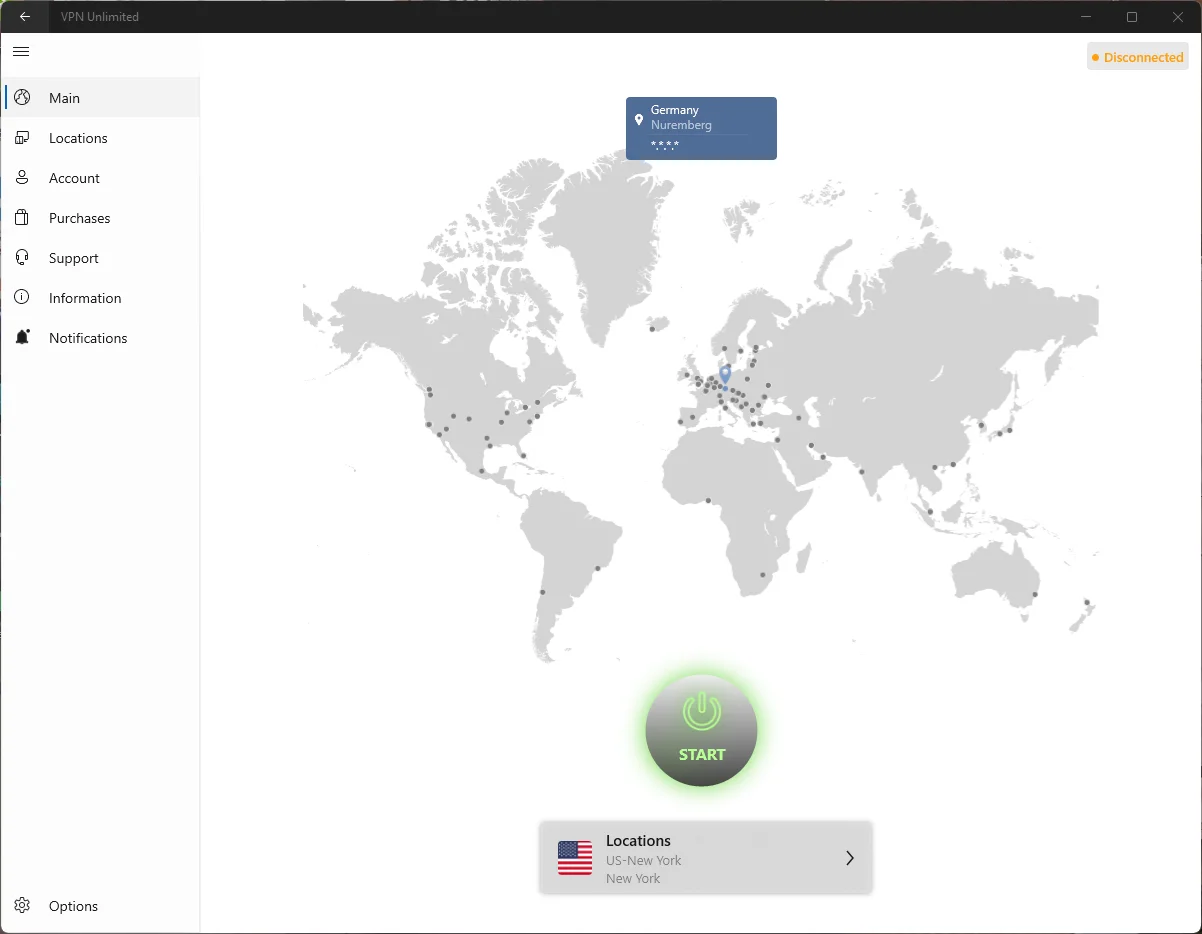
Let's start exploring our top-notch VPN for Windows from the main screen. Here you will see the world map and your real geo-location. Clicking on the Start button you can establish a connection to a chosen VPN server.
Important: The first time you attempt to connect, a system dialog will appear asking for permission to configure the VPN connection. Please click "Yes" in the pop-up window to proceed.
Once connected, you can see both your virtual and real locations and IP addresses on the map.
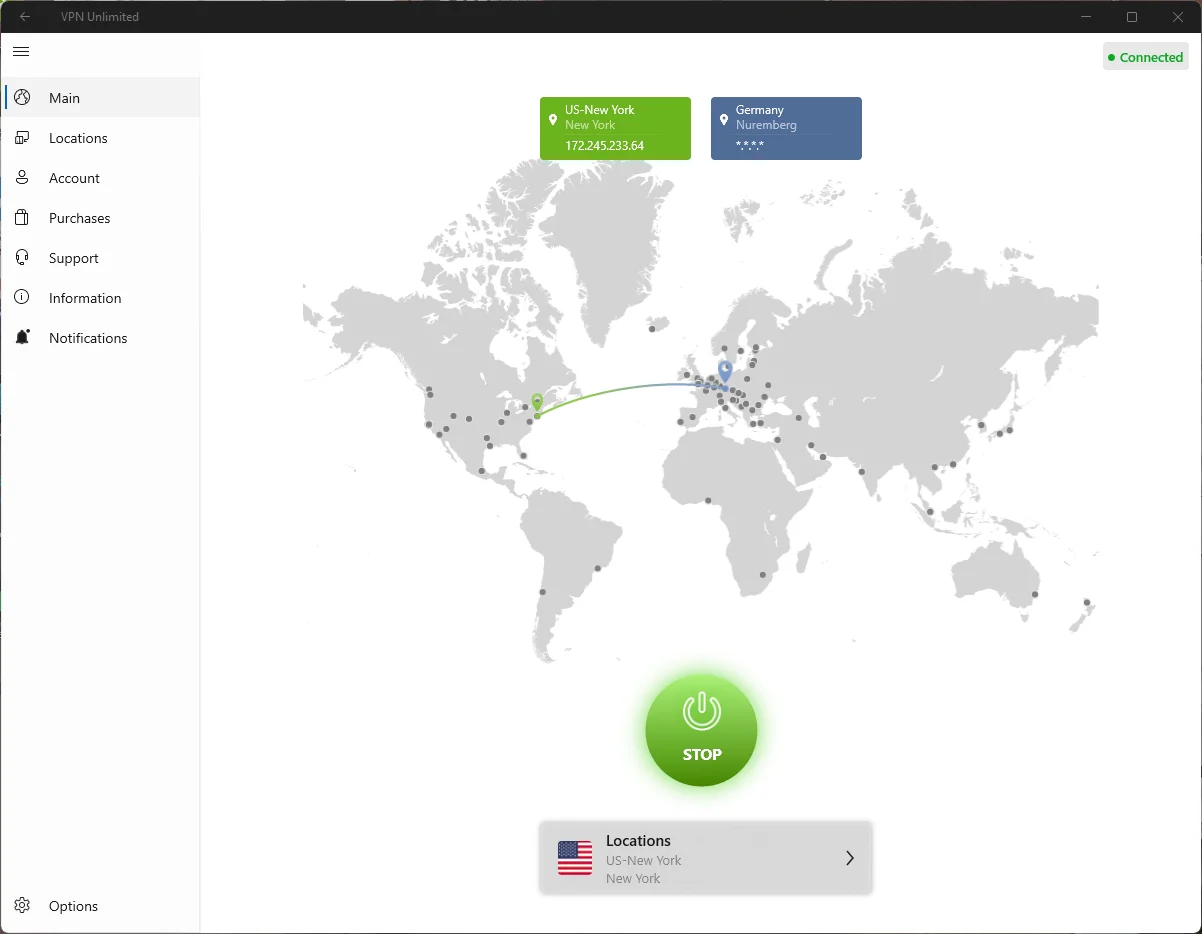
The server you are connecting to is shown below the Start/Stop button. Want to choose another VPN server? Click the Locations tab on the left or click on the current server name to get to the server selection screen.
How to Use the Windows VPN Client Locations Tab
The side panel allows you to access the list of server locations by clicking the Locations tab.
The server screen displays the following tabs:
- Favorites: Your personalized list of preferred VPN locations. Click the star icon next to any server to add it here for quick access.
- Additionally, on the top of the Favorites tab (and All servers), you will find the Optimal server option. Enabling this feature allows the application to automatically select a suitable virtual server that provides the best performance.
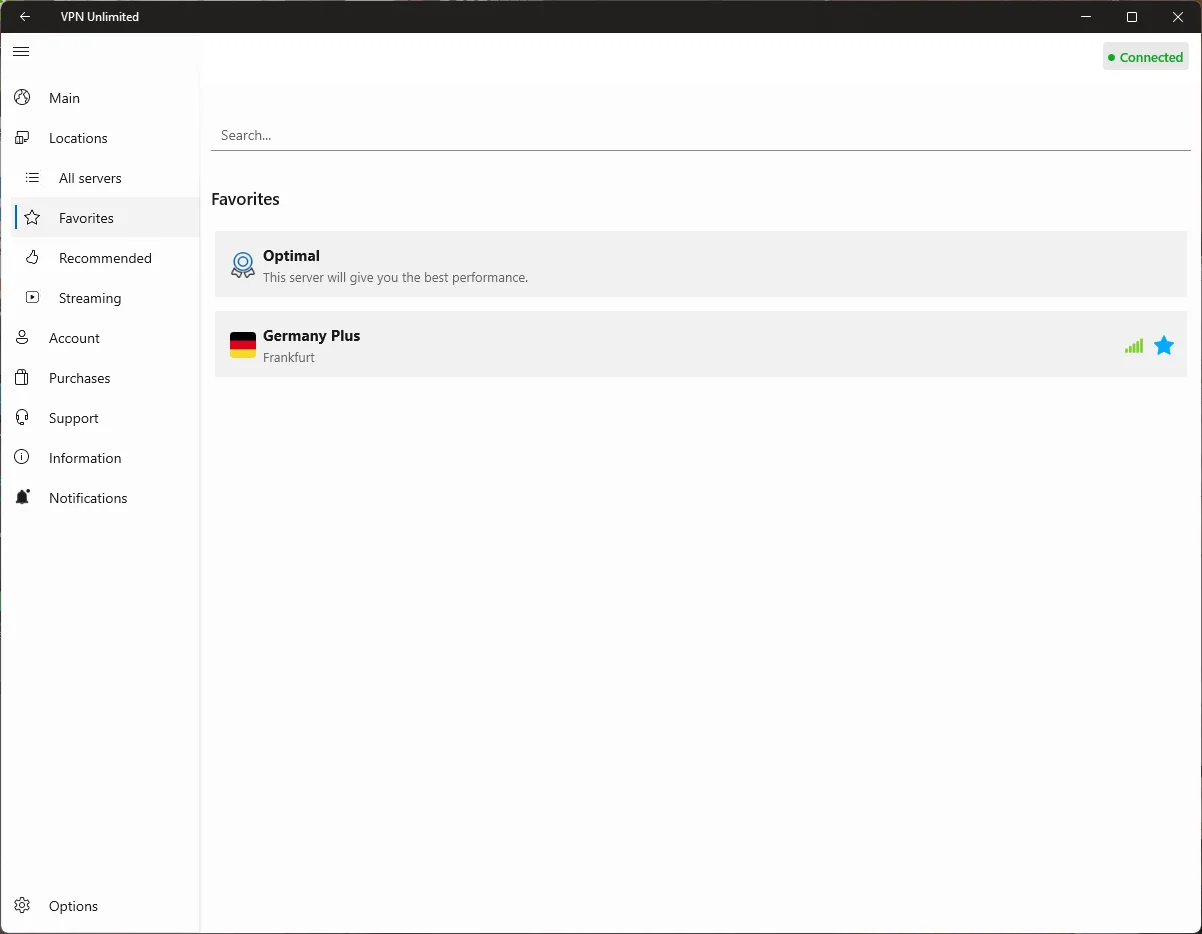
In the left side menu you will also find the All servers and Recommended tabs.
- All servers: This tab contains the complete list of available server locations.
- Recommended: This is a curated list of servers offering optimal performance for a better online experience.
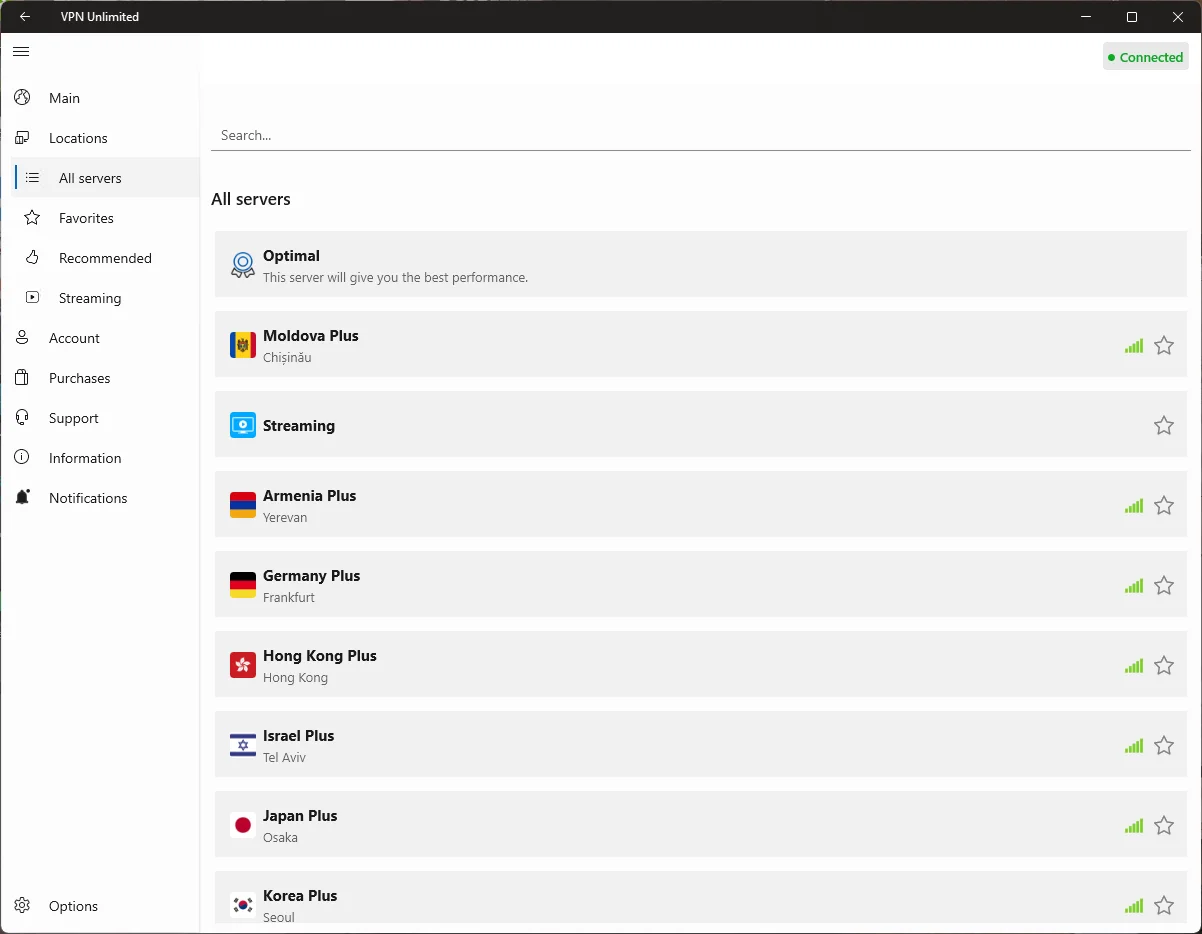
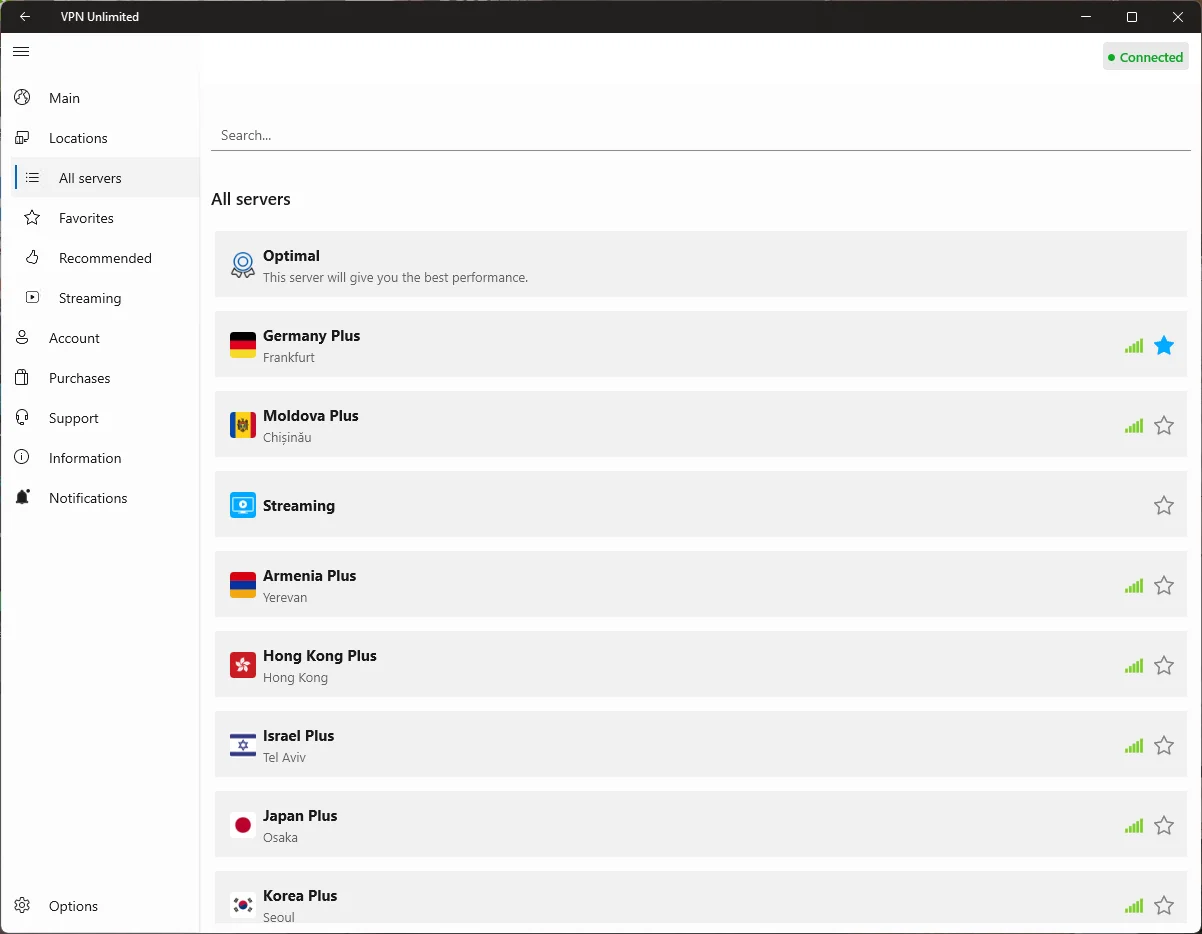
The indicators in front of each VPN server reflect its workload. The higher the workload is, the more users are simultaneously connected to this server. Choose servers with lower workloads for better speed.
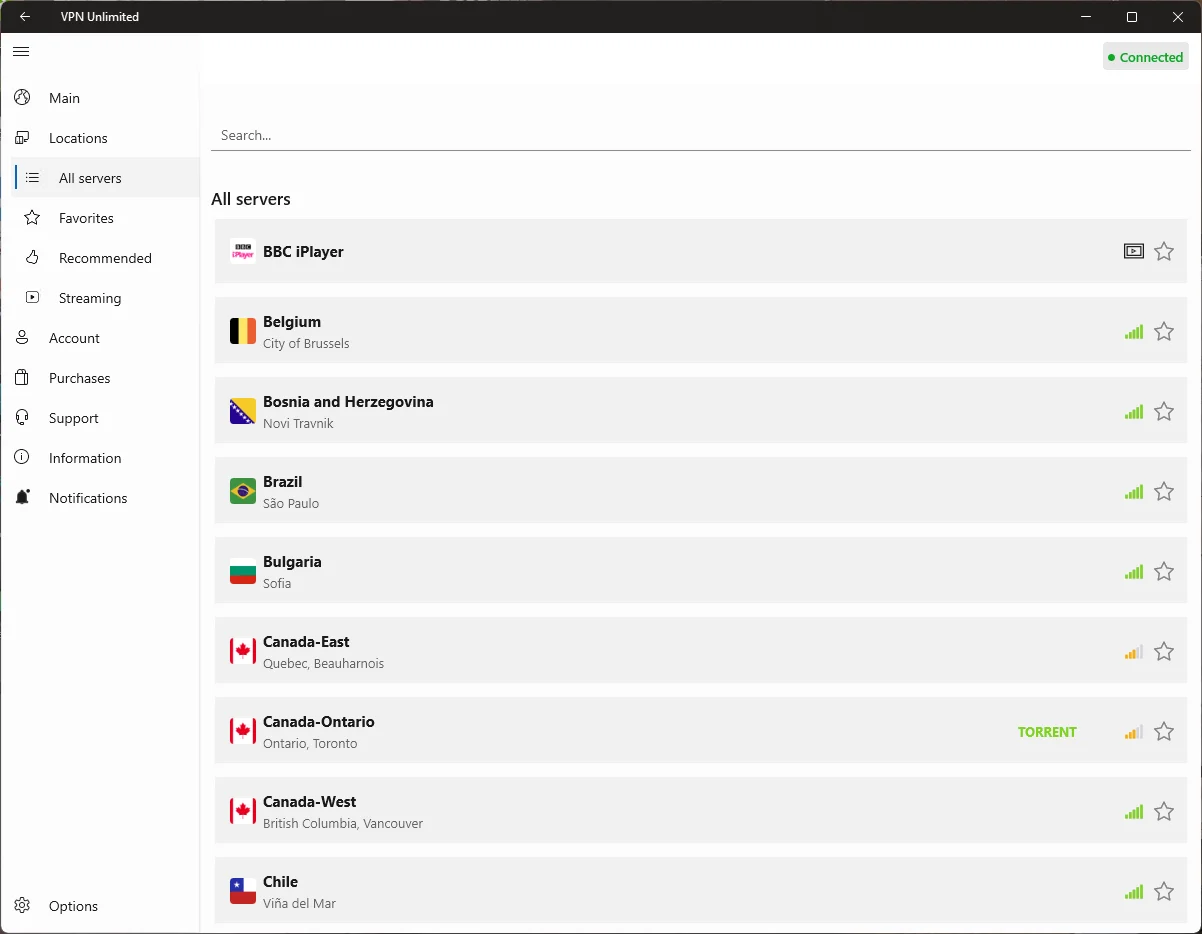
Servers that support secure and anonymous P2P downloading are designated with a special "TORRENT" mark next to their names in the All servers tab, allowing you to easily identify them.
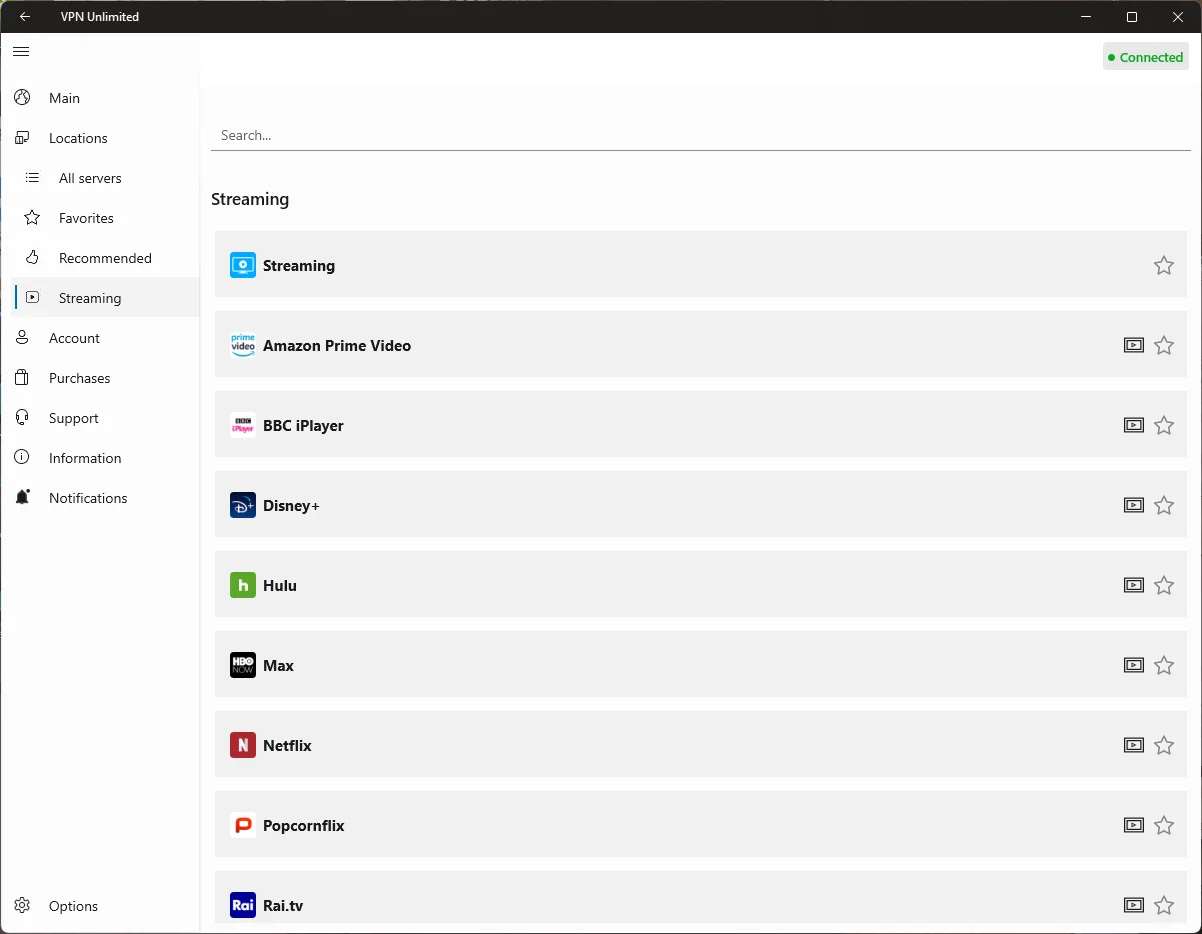
- Streaming: This tab provides specially designed servers to help you access various global streaming services. Select the desired server, and click the designated icon next to it to launch the chosen streaming service website directly.
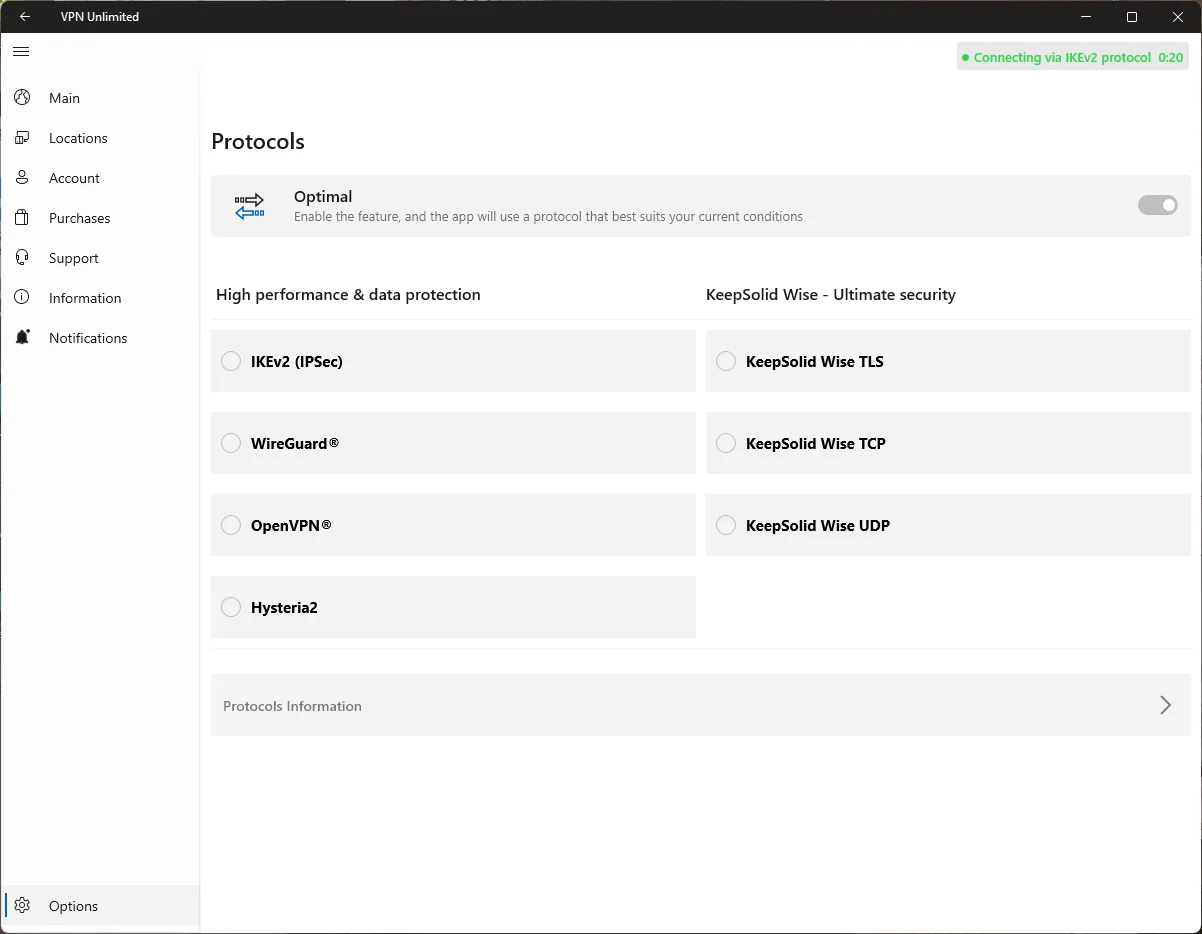
Network Settings: How to Choose a VPN Connection Protocol
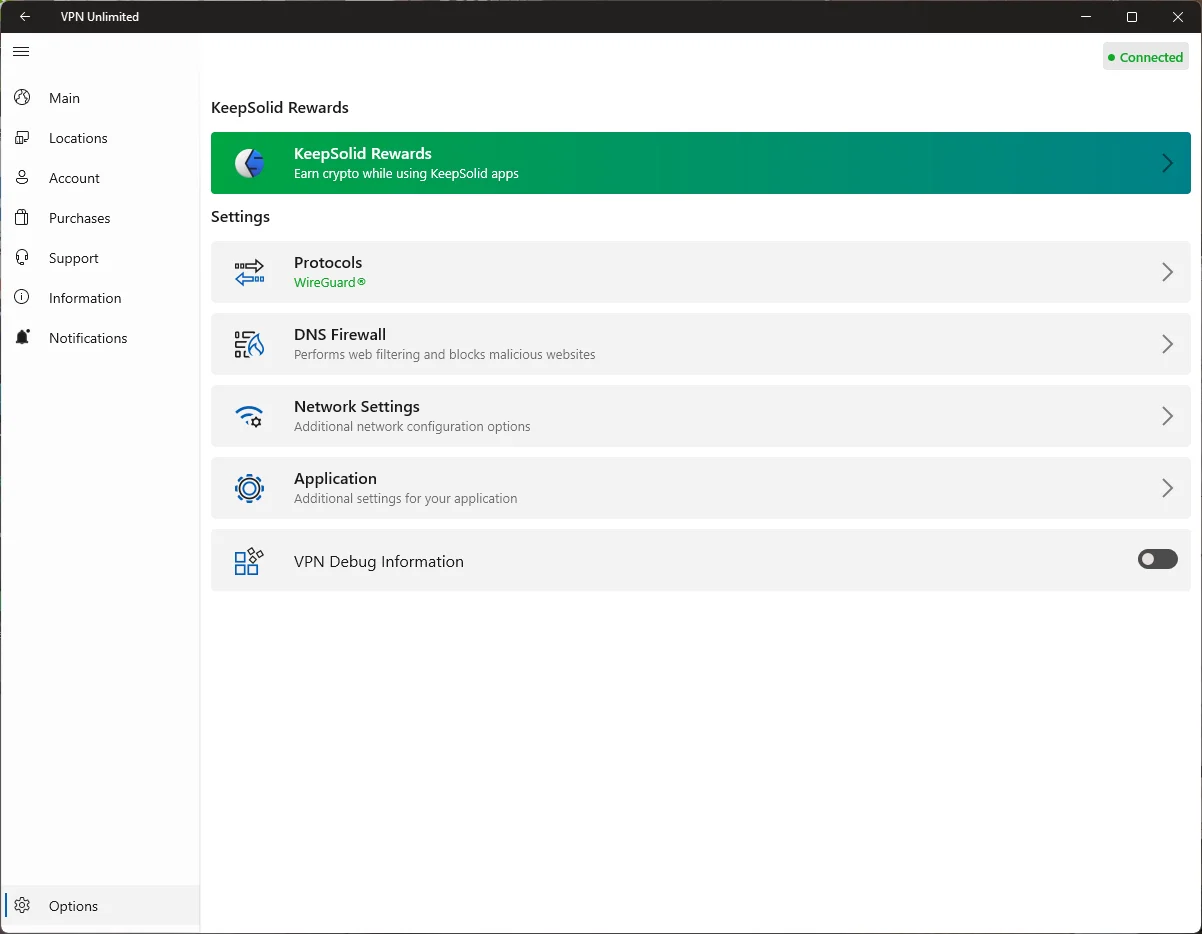
The Protocols section, accessible via the Options menu, allows you to choose the most suitable VPN protocol for your connection. The current options are: IKEv2 (IPSec), WireGuard®, OpenVPN®, Hysteria2, KeepSolid Wise TLS, KeepSolid Wise TCP, and KeepSolid Wise UDP. You can learn more about VPN protocols here.
If you're not sure which VPN protocol to choose, enable the Optimal protocol option. In this case, the system will automatically pick the protocol that will ensure the best performance based on your current conditions.
Note: The DNS Firewall setting is now available as a separate option within the Options menu.
Account Tab: How to Manage Your KeepSolid ID and Subscription
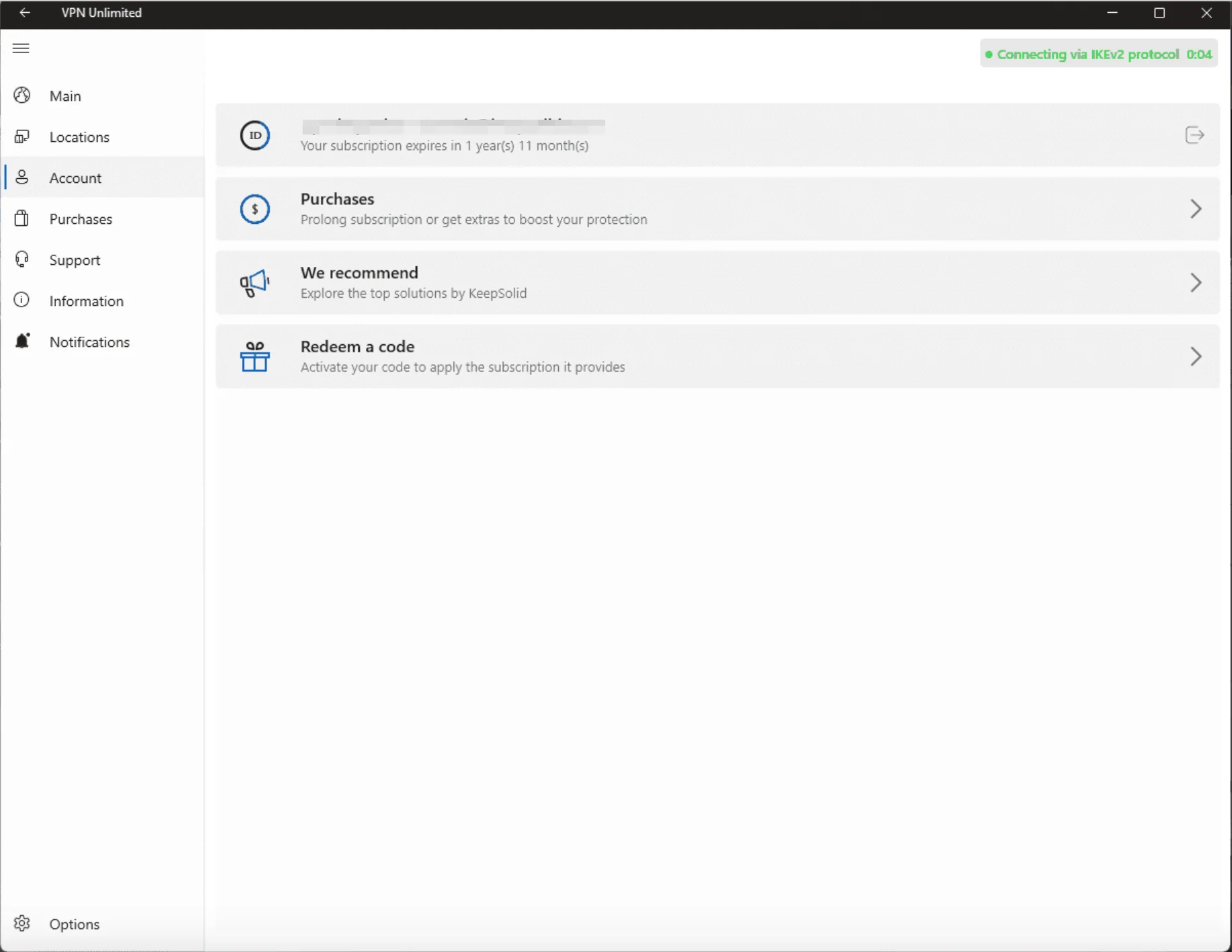
The Account tab lets you manage your KeepSolid ID and VPN subscription. Here you’ll find the following options:
- KeepSolid ID Status: Displays your registered email and the remaining period of your subscription. You can click the arrow icon to log out.
- Purchases: Allows you to prolong your current subscription or get extras (like Personal VPN server, Personal IP, or Additional device slots) to boost your protection.
- We recommend: Explore the top security and productivity solutions offered by KeepSolid.
- Redeem a code: Activate your redeem code here to apply a VPN subscription to your account.
Purchases Tab: How to Get or Upgrade Your VPN Subscription
Proceed to the Purchases tab to choose the desired subscription to our VPN app for Windows. You will find various options, from short-term plans to a Lifetime VPN subscription. Select the most suitable one to enjoy complete internet freedom and unmatched online protection.
Information Tab: What Info You Can Find on This Tab
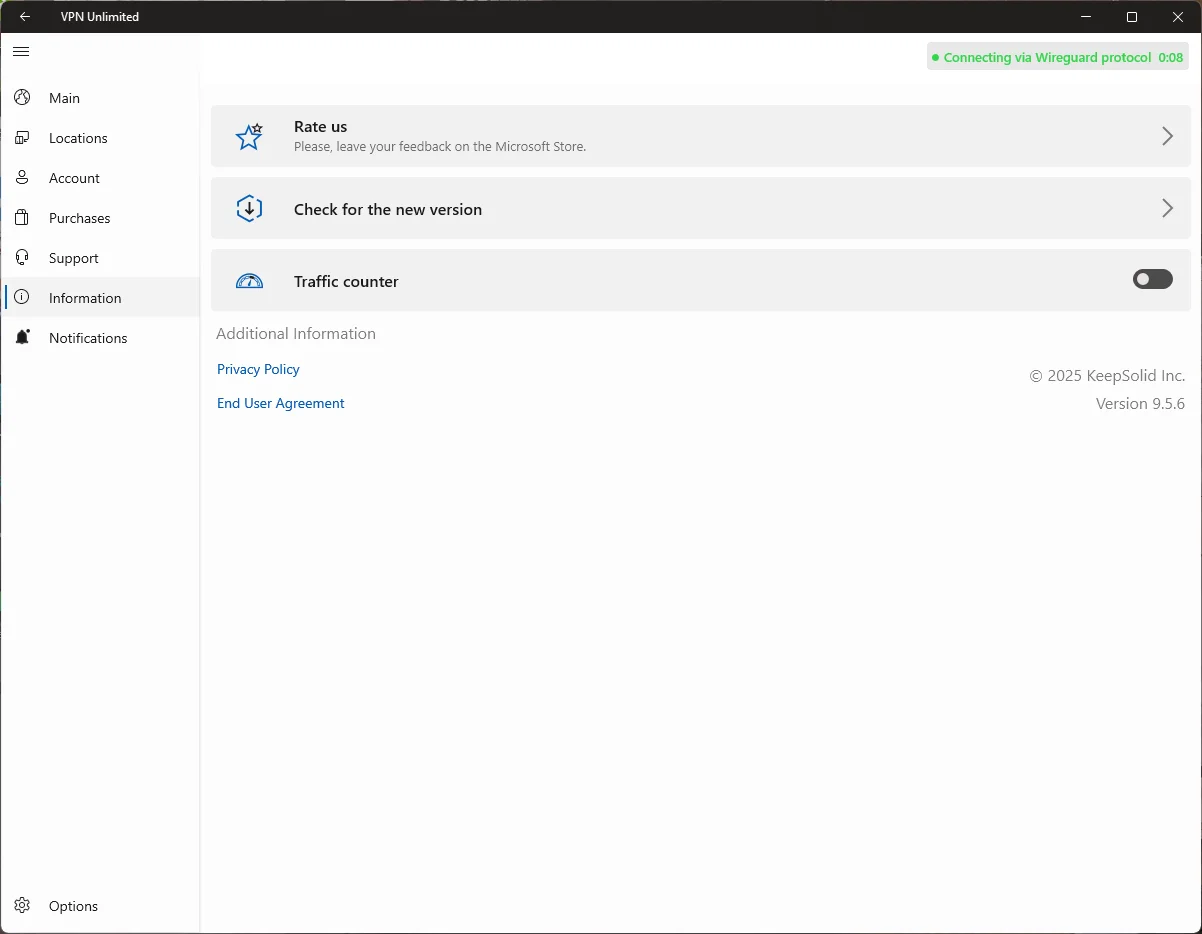
The Information tab provides ways to learn more about the application and share your feedback. Here you can find the following options:
- Rate us: Leave feedback on the Microsoft Store to share your experience with other users. We greatly appreciate your feedback!
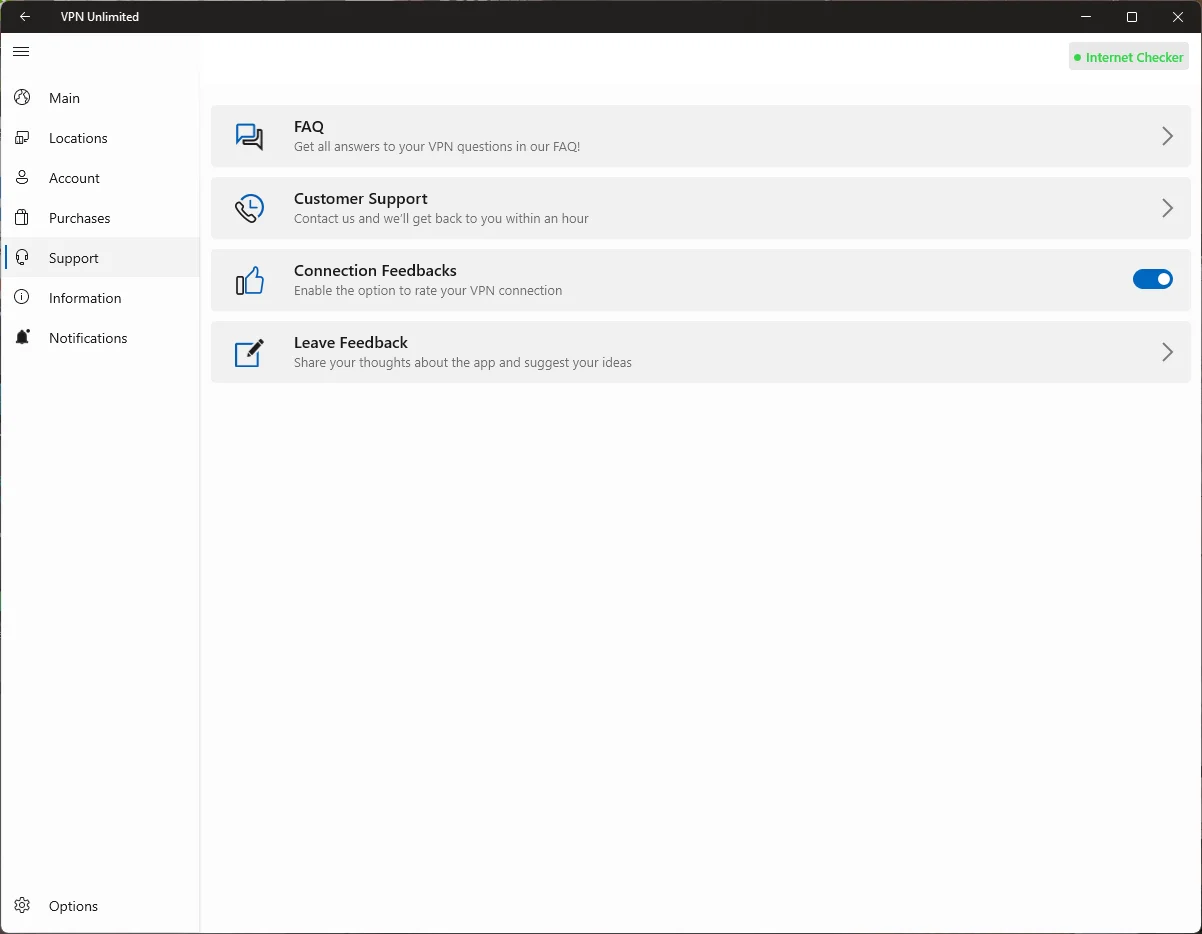
- Leave feedback: Tell us what you think about our VPN client and share any suggestions.
- FAQ: View answers to the most frequently asked questions.
- We recommend: Explore the top security and productivity solutions offered by KeepSolid.
- About VPN Unlimited: Check the application version and view our mission.
- Check for the new version: This option allows you to manually check for and install the latest updates for the application.
Notifications Tab: What Special Offers are Available
The Notifications tab is where you can find our special deals and discounts. Be sure to check this tab regularly to access exclusive offers and get VPN Unlimited at a special price.
Support Tab: How We Can Help You
Our customer support team works 24/7 all year round to assist you with any questions you may have, including how to use VPN Unlimited on Windows, manage your subscription, or resolve any technical issues.
Feel free to contact us anytime. Click on the Support tab to open your mail service and start filling out your support ticket.
How to Configure Windows VPN Client Settings
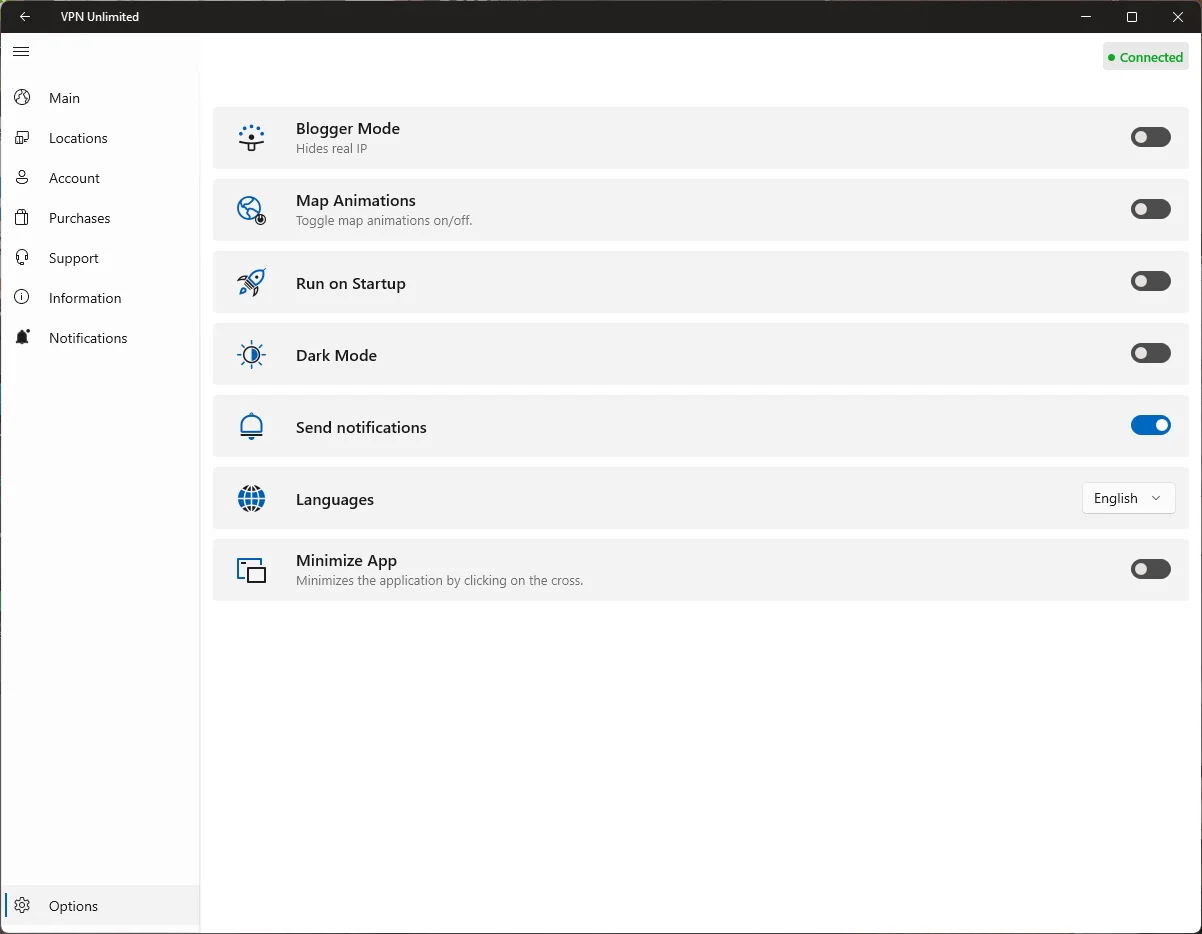
The Settings button in the bottom left corner allows you to configure the following options:
- Personalization: Configure your Windows VPN app by choosing the preferred theme: Light, Dark, or Windows default.
- Application run on startup: Want VPN Unlimited to be enabled automatically at the startup of your Windows PC or laptop? Turn on the toggle below Application run on startup. A system pop-up will appear - you must click "Enable" to grant the necessary permissions for automatic startup.
Note: If you disable this setting or need to activate it later, you may have to manually navigate to the Task Manager > Startup tab to enable VPN Unlimited.
- Send notifications: We recommend keeping notifications enabled so that you receive important alerts from our VPN client.
- Connection feedbacks: When this option is enabled, you'll be prompted to rate the quality of your VPN connection upon disconnection, helping us improve our service.
- About this application: View information about the app, its version, and access links to the KeepSolid Privacy Policy, End User Agreement, and related regulations.
That’s it! We’ve explored all the main features of the Microsoft Store version of VPN Unlimited and you now know how to use VPN on Windows PC. Want to install and use the app on other devices? Check out our Manuals page to find the guide you need!

Download VPN Unlimited on your device, connect our high-speed VPN servers, and start surfing the web like a pro.