Om VPN Unlimited for Linux (Flatpak)
VPN Unlimited er en plattformuavhengig VPN-tjeneste uten begrensninger på trafikk eller tilkoblingshastighet. Denne pakken er Flatpak-versjonen av Linux-klienten for skrivebord: én selvstendig nedlasting som kjører på alle Linux-distribusjoner med støtte for Flatpak, inkludert Steam Deck (SteamOS), der vanlige .deb-pakker ikke kan installeres.
Flatpak-versjonen er laget for å være lett og for å la systemet være som før:
- Ingen bakgrunnstjeneste og ingen kjernemodul. Klienten installerer ingen systemdaemon eller driver. VPN-tunnelen opprettes via NetworkManager, nettverkstjenesten som allerede er en del av systemet.
- WireGuard®-protokoll. Tunnelen bruker WireGuard — den moderne og raske VPN-protokollen med en liten kodebase som er enkel å revidere.
- Alt holdes på ett sted. Programmet og innstillingene ligger i Flatpak-sandkassen, slik at de fjernes rent når programmet avinstalleres.
Hvis du bruker Ubuntu eller en annen Debian-basert distribusjon og foretrekker en innebygd pakke, finnes det også en .deb-versjon på nedlastingssiden.
Systemkrav
| Arkitektur | 64-biters x86 (x86_64 / amd64) |
| Flatpak | Installert og i drift, med Flathub-repositoriet tilgjengelig |
| Nettverkstjeneste | NetworkManager med støtte for WireGuard |
| Skjermserver | X11 eller Wayland med Xwayland (standard på Steam Deck og de fleste skrivebordsmiljøer) |
| Konto | En VPN Unlimited-konto — du kan opprette en i appen eller på nettstedet vårt |
Verifisert av QA-teamet vårt på SteamOS 3.8 (Steam Deck) og Ubuntu 24.04.
Før du begynner
Pakken krever både Flatpak og KDE-kjøremiljøet den er bygget mot. Kjøremiljøet lastes ned automatisk første gang du installerer appen, men Flatpak må vite hvor det skal hentes fra, så Flathub-repositoriet må være registrert. Dette gjelder begge installasjonsalternativene nedenfor.
Steam Deck / SteamOS: Flatpak og Flathub er allerede konfigurert. Bytt til Skrivebordsmodus og gå videre til neste avsnitt.
Andre distribusjoner: installer Flatpak med pakkebehandleren hvis du ikke allerede har det — for eksempel på Ubuntu eller Debian:
sudo apt update
sudo apt install flatpak
Legg deretter til Flathub-repositoriet (for alternativ B nedenfor brukes det bare som kilde for kjøremiljøet):
flatpak remote-add --if-not-exists --user flathub https://dl.flathub.org/repo/flathub.flatpakrepoLogg ut og inn igjen etter at du har installert Flatpak for første gang, slik at skrivebordsmiljøet finner nylig installerte programmer.
Installere VPN Unlimited
Det finnes to måter å hente appen på — velg én av dem; resultatet er det samme programmet.
Alternativ A — fra Flathub

Hvis skrivebordsmiljøet ditt har et programsenter (KDE Discover, GNOME Software — Discover er standard på Steam Deck), søk etter VPN Unlimited og trykk på Installer.
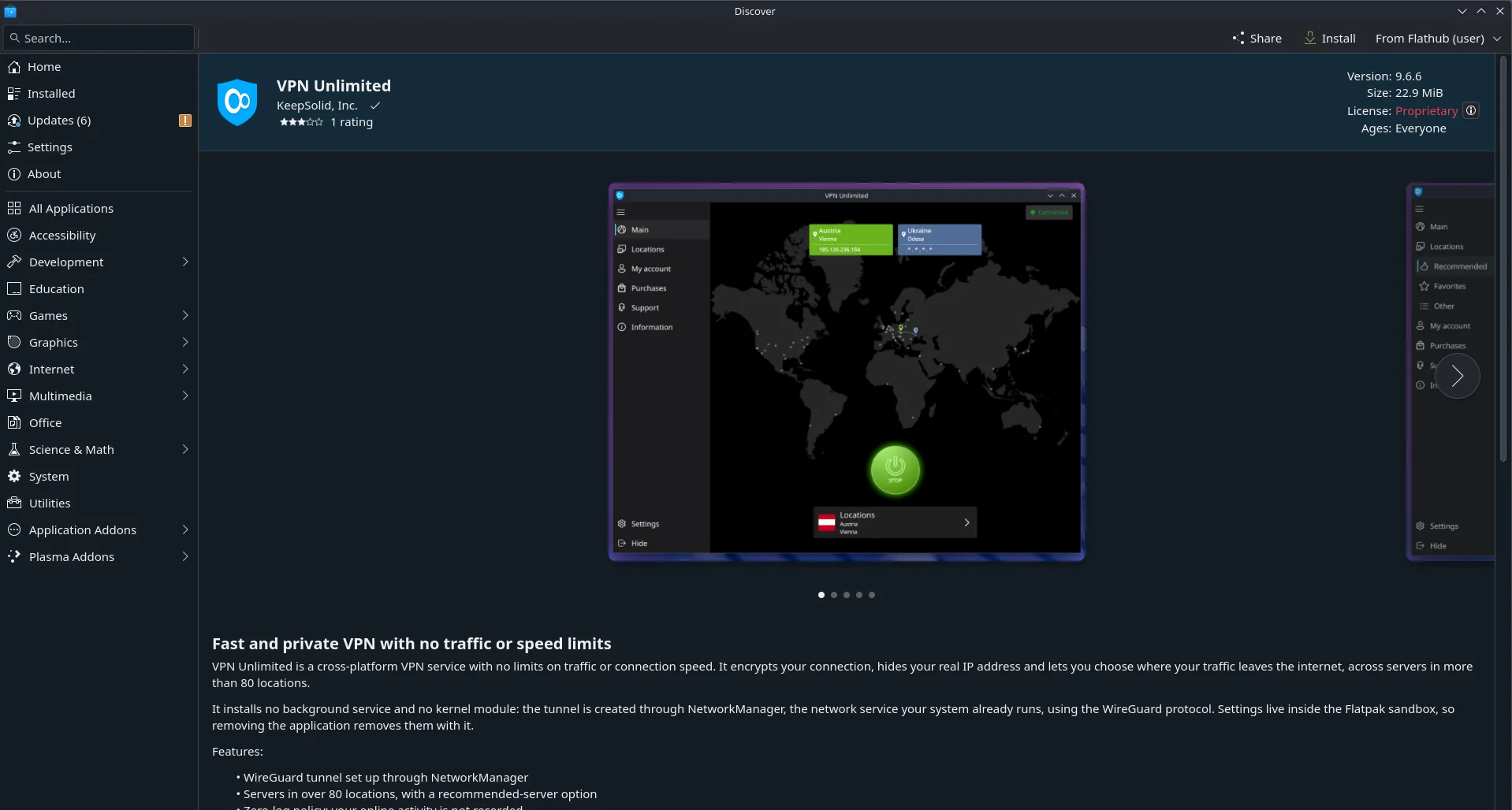
Du kan også installere det fra en terminal:
flatpak install flathub com.keepsolid.VpnUnlimitedInstallering fra Flathub gir også automatiske oppdateringer — se Oppdatering nedenfor.
Alternativ B — pakken som lastes ned fra denne siden
1. Last ned pakken med knappen på denne siden — filen heter com.keepsolid.VpnUnlimited.flatpak.
2. Åpne en terminal i mappen der filen ble lagret (på Steam Deck: Skrivebordsmodus → Dolphin → høyreklikk → Åpne terminal her) og kjør:
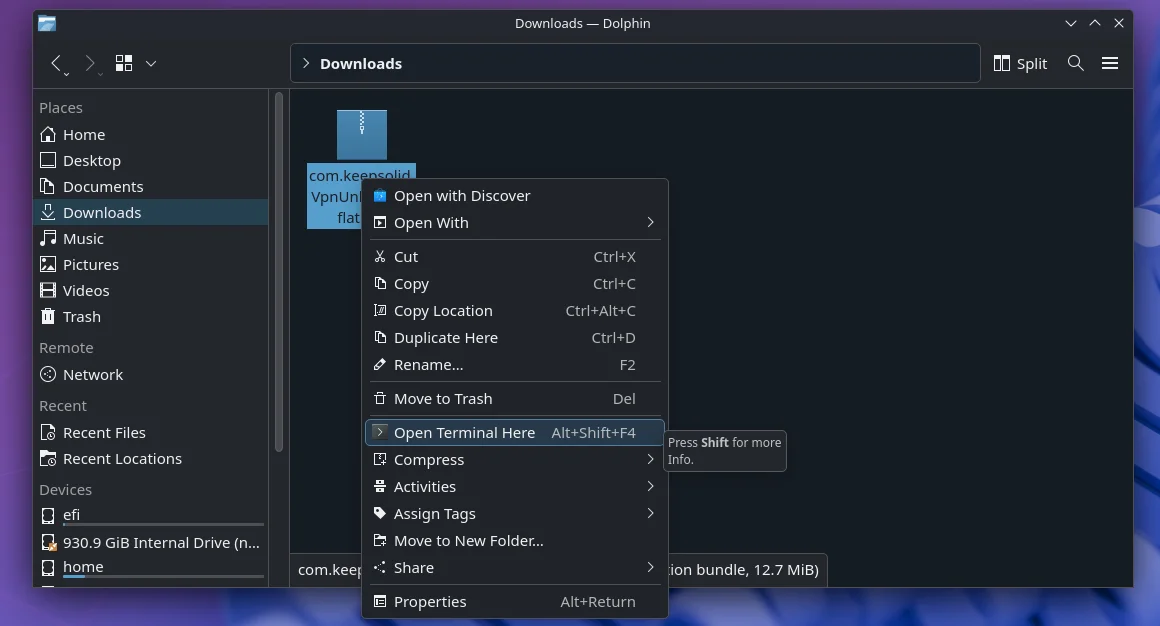
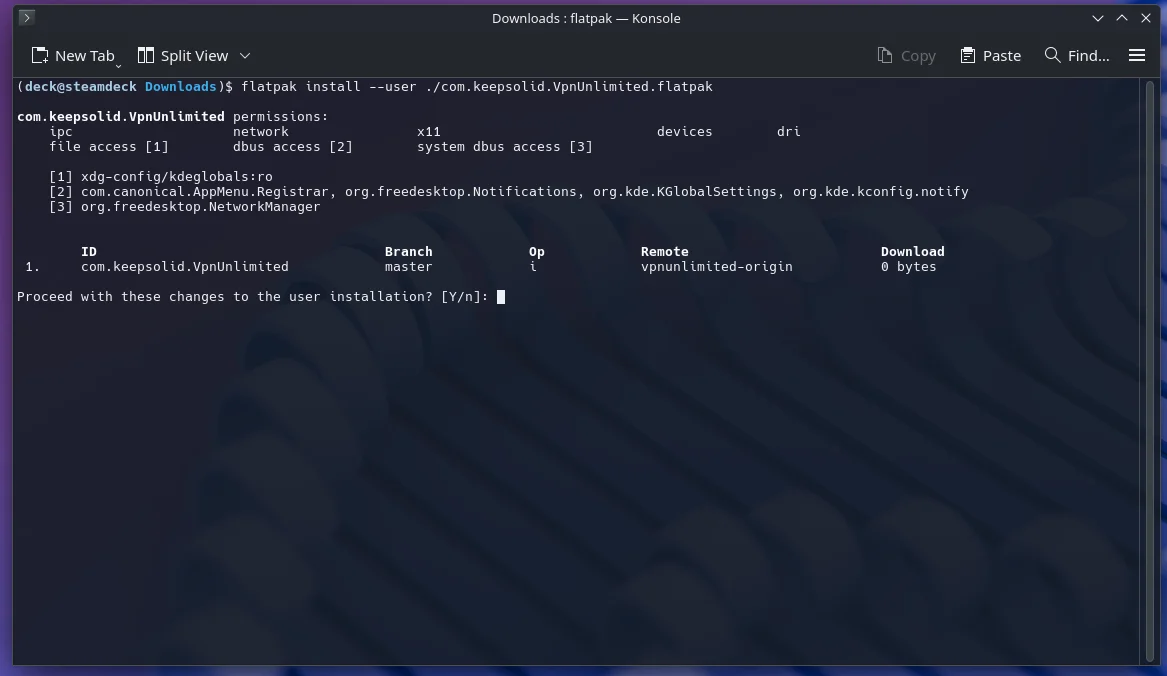
flatpak install --user ./com.keepsolid.VpnUnlimited.flatpakBekreft med y når Flatpak viser hva som skal installeres. Den første installasjonen laster også ned KDE-kjøremiljøet, så det tar noen minutter og krever omtrent 1 GB diskplass; senere oppdateringer er mye mindre.
3. Ferdig. VPN Unlimited vises nå i programmenyen under Internett. Du kan også starte det fra en terminal:
flatpak run com.keepsolid.VpnUnlimited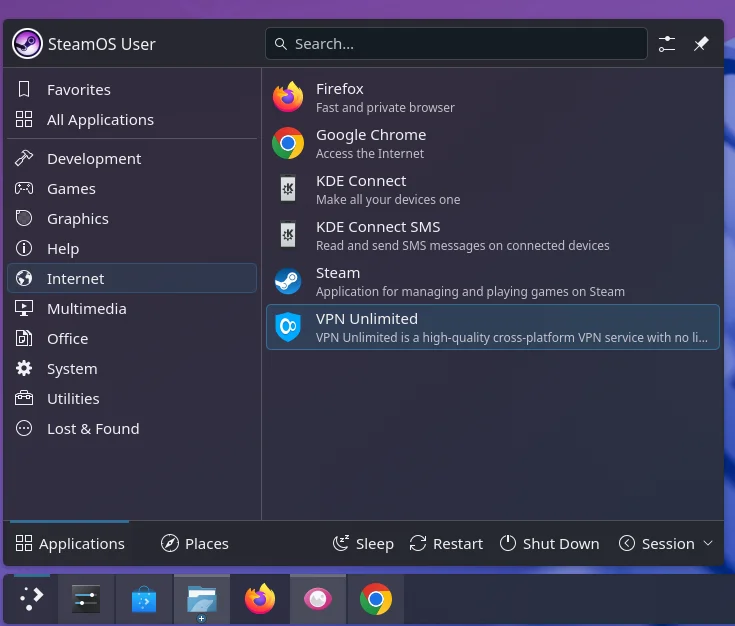
Foretrekker du et grafisk installasjonsprogram? Mange skrivebordsmiljøer (GNOME Software, KDE Discover) åpner .flatpak-filer direkte — dobbeltklikk på den nedlastede filen og trykk på Installer. Resultatet er identisk.
Om --user: Hvis du installerer bare for din bruker, trengs ikke administratorpassord. Hvis du vil at appen skal være tilgjengelig for alle kontoer på maskinen, fjerner du --user, og Flatpak vil be om autentisering.
Logge inn og koble til
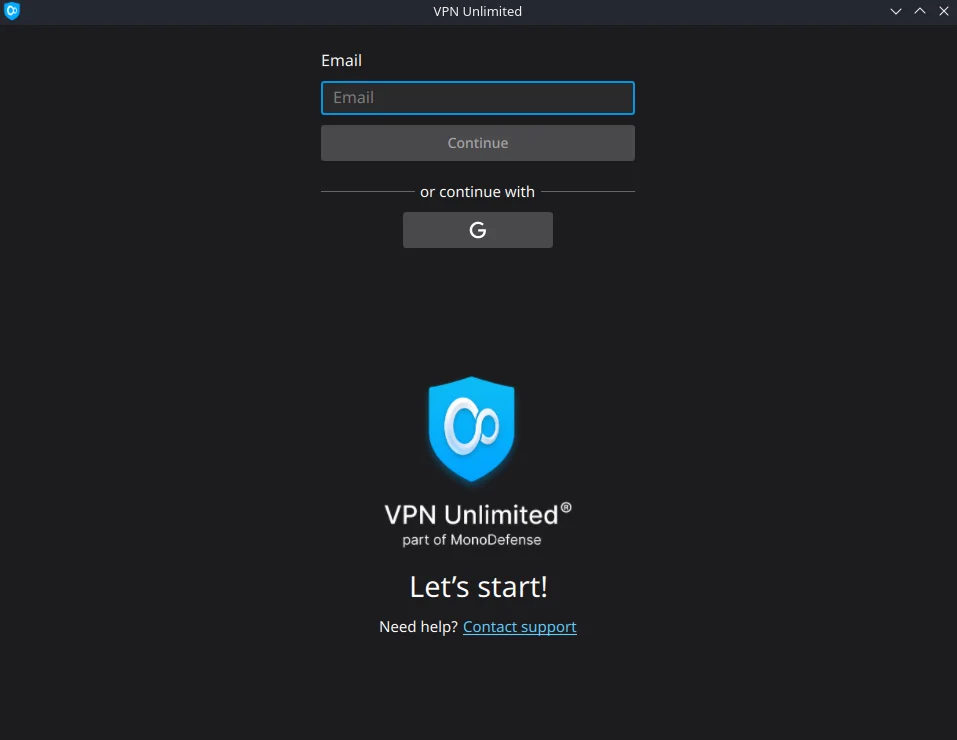
1. Start VPN Unlimited og logg inn med KeepSolid ID-en din, eller opprett en konto på samme skjerm. Innlogging med Google åpner systemets nettleser og går automatisk tilbake til appen.
2. Trykk på den store knappen Start for å koble til den anbefalte serveren, eller åpne Locations og velg et land selv.
3. Statusindikatoren øverst til høyre viser gjeldende tilstand — Disconnected, Connecting eller Connected.
4. Trykk på Stop for å koble fra.
Ved den første tilkoblingen ber systemet om tillatelse til å opprette en nettverkstilkobling; dette er NetworkManager som utfører sin vanlige oppgave.
Steam Deck: legge til appen i Steam og bruke den i spillmodus
Installer og logg inn fra Skrivebordsmodus først. For å få tilgang til appen uten å forlate spillmodus legger du den til i Steam-biblioteket som et program som ikke er fra Steam:
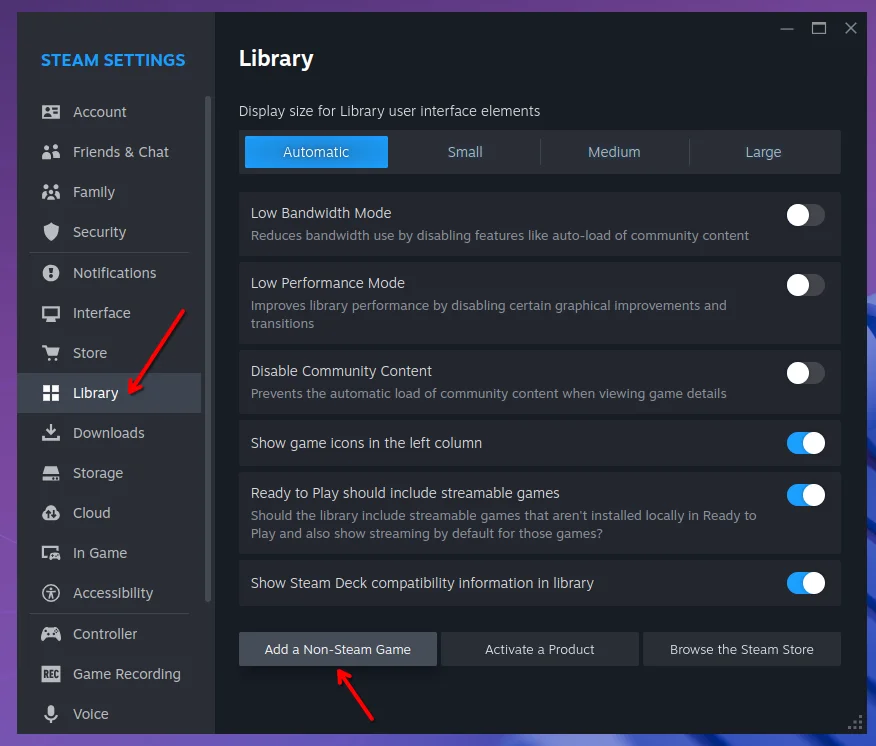
1. Åpne Steam i Skrivebordsmodus → Innstillinger → Bibliotek, og trykk deretter på Legg til et spill som ikke er fra Steam.
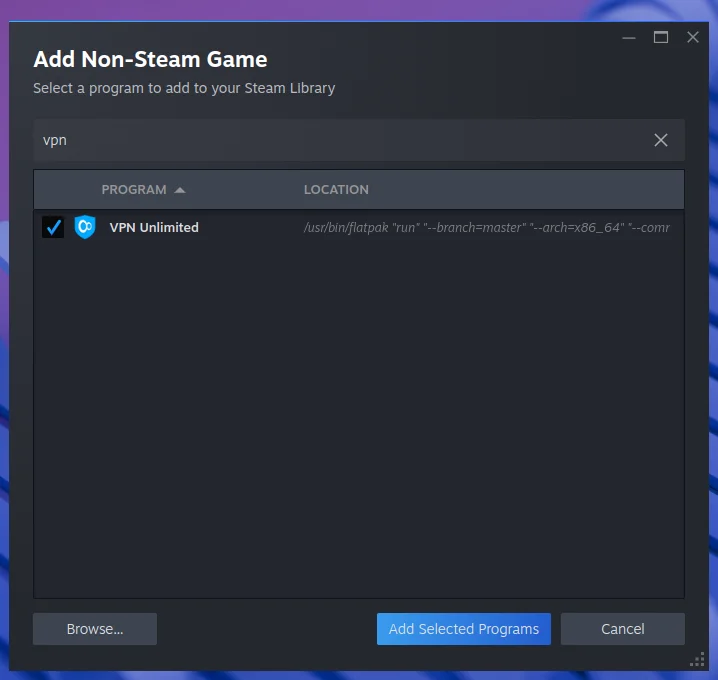
2. Merk av for VPN Unlimited i listen og trykk på Legg til valgte programmer.
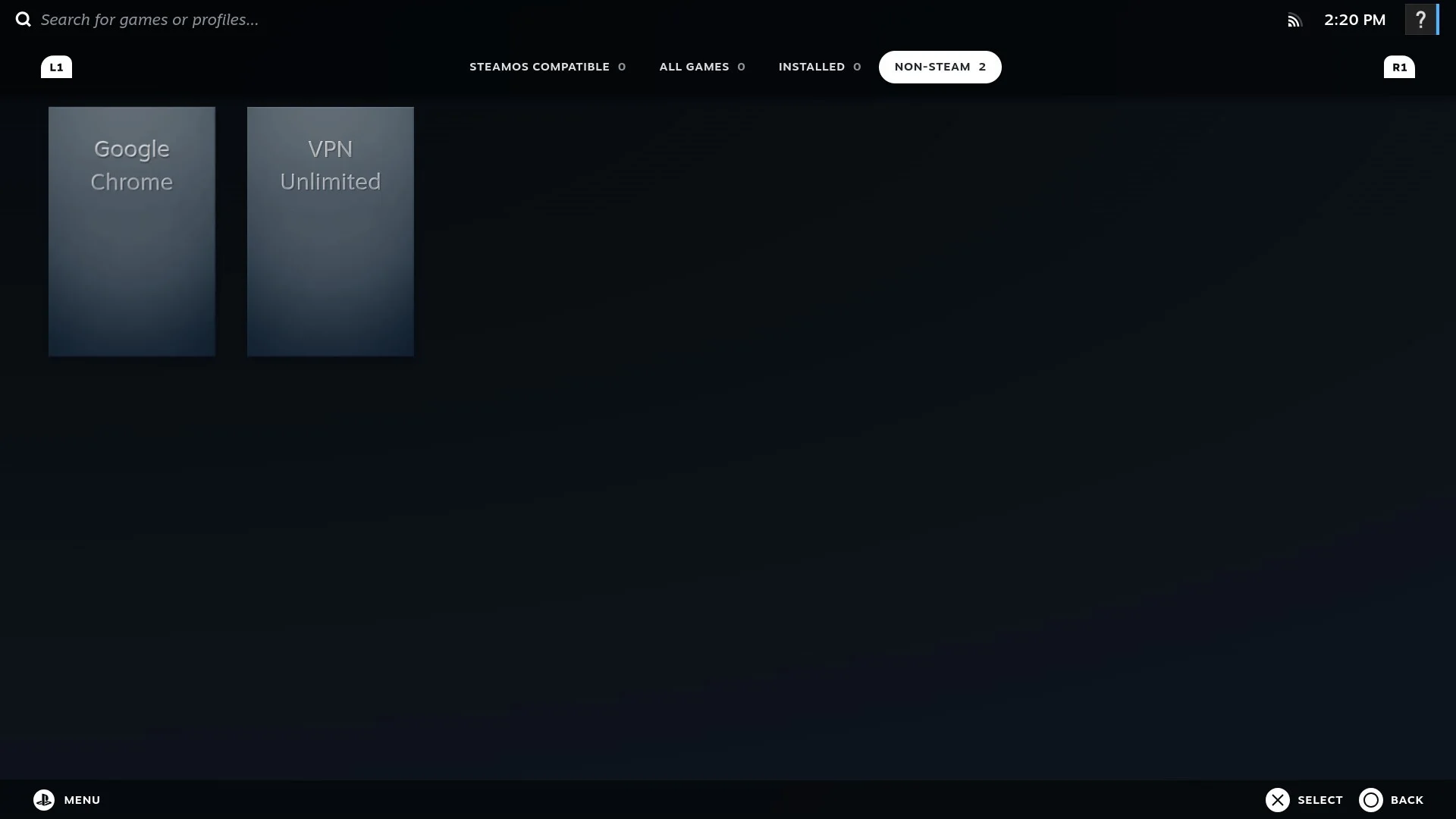
3. Bytt tilbake til spillmodus — appen vises nå i biblioteket under Ikke-Steam.
Når du bytter mellom skrivebords- og spillmodus, lukkes kjørende programmer — men VPN-tunnelen forblir aktiv, fordi den tilhører systemets nettverkstjeneste og ikke appvinduet. Når du åpner VPN Unlimited igjen, gjenkjenner appen den aktive tunnelen og viser Connected.
Oppdatering
Installert fra Flathub (alternativ A): oppdateringer kommer sammen med de vanlige systemoppdateringene — programsenteret tilbyr dem automatisk, eller du kan kjøre:
flatpak updateInstallert fra den nedlastede filen (alternativ B): last ned den nye .flatpak-filen fra denne siden og installer den over den eksisterende:
flatpak install --user --reinstall ./com.keepsolid.VpnUnlimited.flatpakI begge tilfeller beholdes kontoen og innstillingene dine — de lagres utenfor selve programmet.
Avinstallering
Trykk først på Stop i appen — tunnelen er en systemtilkobling som fortsetter å kjøre etter at appen er lukket, så ved å koble fra før avinstallering unngår du at en tilkobling blir liggende igjen. Kjør deretter:
flatpak uninstall --user --delete-data com.keepsolid.VpnUnlimitedDette fjerner programmet sammen med innstillingene og bufrede data.
Hvis du avinstallerte appen mens du fortsatt var tilkoblet, sletter du den gjenværende tunnelen med nmcli connection delete VPNUWireguard.
Feilsøking
"error: The application ... requires the runtime org.kde.Platform ... which was not found"
Flathub-repositoriet er ikke registrert, så Flatpak kan ikke hente kjøremiljøet. Kjør kommandoen flatpak remote-add fra Før du begynner og installer på nytt.
Appen starter, men kan ikke koble til, eller tilkoblingen mislykkes umiddelbart
Kontroller at NetworkManager er tjenesten som administrerer nettverket ditt — dette er standard på Steam Deck samt Ubuntu- og Fedora-skrivebord. På et system der nettverket administreres av noe annet (for eksempel systemd-networkd på en serverinstallasjon), kan Flatpak-versjonen ikke opprette tunnelen.
Ingenting skjer når jeg starter den fra menyen
Start den fra en terminal med flatpak run com.keepsolid.VpnUnlimited — eventuelle feil skrives ut der, og denne utdataen er det supportteamet vårt trenger.
Jeg er fortsatt tilkoblet etter at appen er lukket
Dette er tilsiktet: trafikken fortsetter å gå gjennom VPN-tilkoblingen når vinduet er lukket, noe som er viktig på Steam Deck der bytte til spillmodus lukker programmer. Bruk Stop i appen for å avslutte tunnelen.
Hvor finner jeg loggene mine?~/.var/app/com.keepsolid.VpnUnlimited/ inneholder appdataene, inkludert logger. Support kan be deg sende dem; appen kan også samle dem inn og sende dem fra Support i grensesnittet.
Få hjelp
Supportteamet vårt er tilgjengelig døgnet rundt — skriv til oss fra delen Support i appen, eller bruk kontaktskjemaet på nettstedet. Hvis du oppgir hvilken distribusjon du bruker, om du bruker Steam Deck, og utdataen fra flatpak run com.keepsolid.VpnUnlimited, kan vi gi deg et presist svar mye raskere.